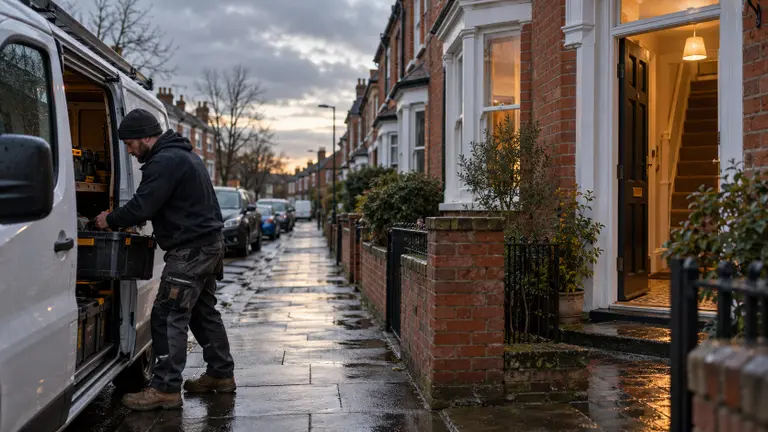
You subcontract a job to another trade in an area you can't reach the same way you run any job. You keep the client. A local subbie does the work. You keep control of the scope, the price and the sign-off. The client is yours. The van doesn't have to be.
What changes is speed and detail. You need someone good near the job fast, and your brief has to be tight, because you won't be standing on site to fix a vague one.
I run my back office from Tangier and I still do UK site visits myself. Most of the jobs that come through I can't physically get to on the day. They still get done properly, because the process does the travelling. Here's that process in Plan@Job, in the order you'd actually do it.
Should you take a job you can't reach at all?
Yes, if the client is worth keeping and you can check the work from a distance. Turning down a good client because one job is out of area just hands them to whoever said yes.
No, if it's a one-off from a stranger and you have no way of seeing the result. If you can't check it, you shouldn't be taking a margin on it.
In Plan@Job you're the Operator. That's the contractor business: you manage the clients, the project delivery, your subcontractors and your own operatives. An out-of-area job is just a job where every stage goes to a subcontractor instead of your own team.
Step 1: Get the job into Jobs properly
Everything starts in Jobs. If the brief is weak here, every price you get back will be weak too.
- Open the job in Jobs, or create it if it came in by phone or email.
- Fill in the full address, access details, who's on site and any parking or key-collection notes.
- Add the photos the client sent. If they didn't send any, ask for them before you go further.
- Write the scope as if the subbie has never met you. Because they haven't.
- Set the date the client actually needs, not the date you'd like.
If the job came in as an enquiry, Sophie Bennett, the AI Enquiries Coordinator, checks the brief for missing information and asks for clarification. If she doesn't get what she needs after two attempts, it comes back to you. She doesn't invent the missing details and she doesn't turn every email into a job.
For anything bigger than a single visit, split it into stages in the project plan. Each stage has its own scope, dates, status and costs, and each one can be subcontracted or kept in-house. That matters later when you're comparing prices stage by stage instead of guessing at one lump.
Step 2: Find subbies near the job in the Directory
Go to Cover a job and search the Directory by the trade you need. Also check your own Subcontractors list first. Someone you've already used two towns over is often a better bet than a stranger on the doorstep.
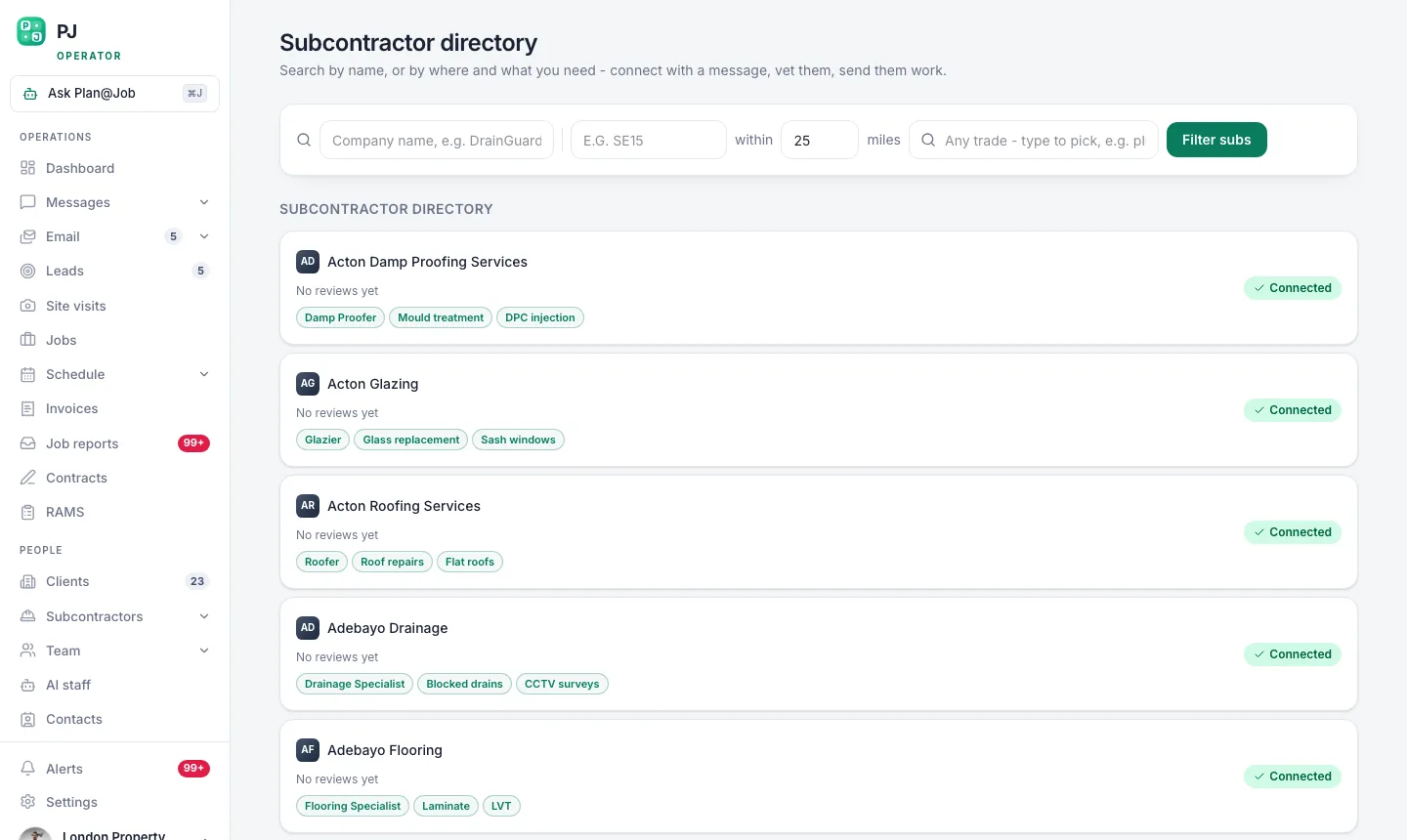 The subcontractor directory ranks by trade first, then by how close they are to the job.
The platform does the sorting. You do the shortlist. Look at the trade fit before the distance. A plumber ten minutes away who doesn't do the type of work you need is no use to you.
Pick a few. Not one. If your only option drops out on the morning, you're the one ringing the client.
Step 3: Send one brief to several from the Subcontracting desk
Open the Subcontracting desk and send the brief to your shortlist. One brief out, every price back in one place. No copying the same message into five WhatsApp chats.
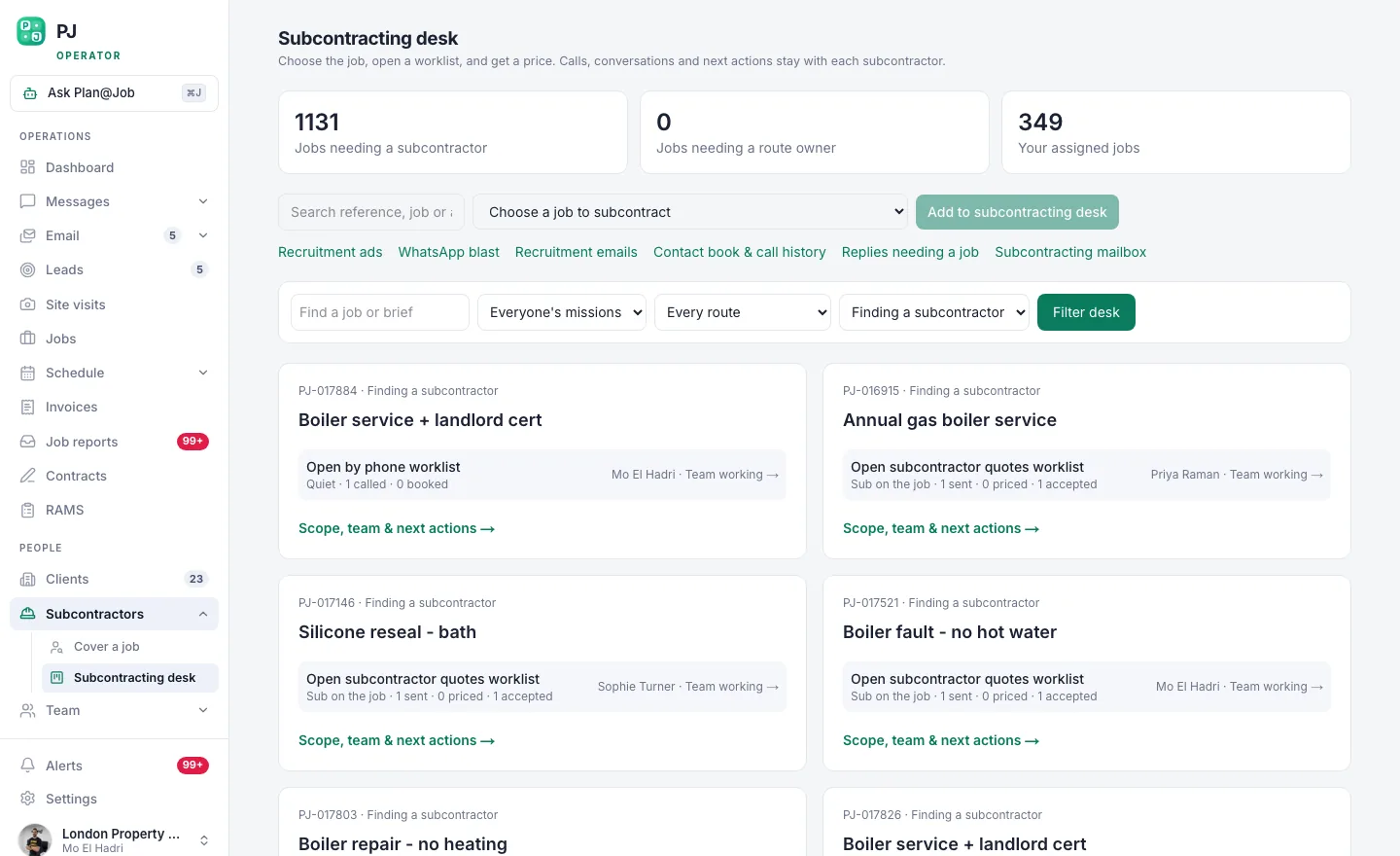 The subcontracting desk: one brief out to many, and every price back in one place.
This is what the subbie sees on their end.
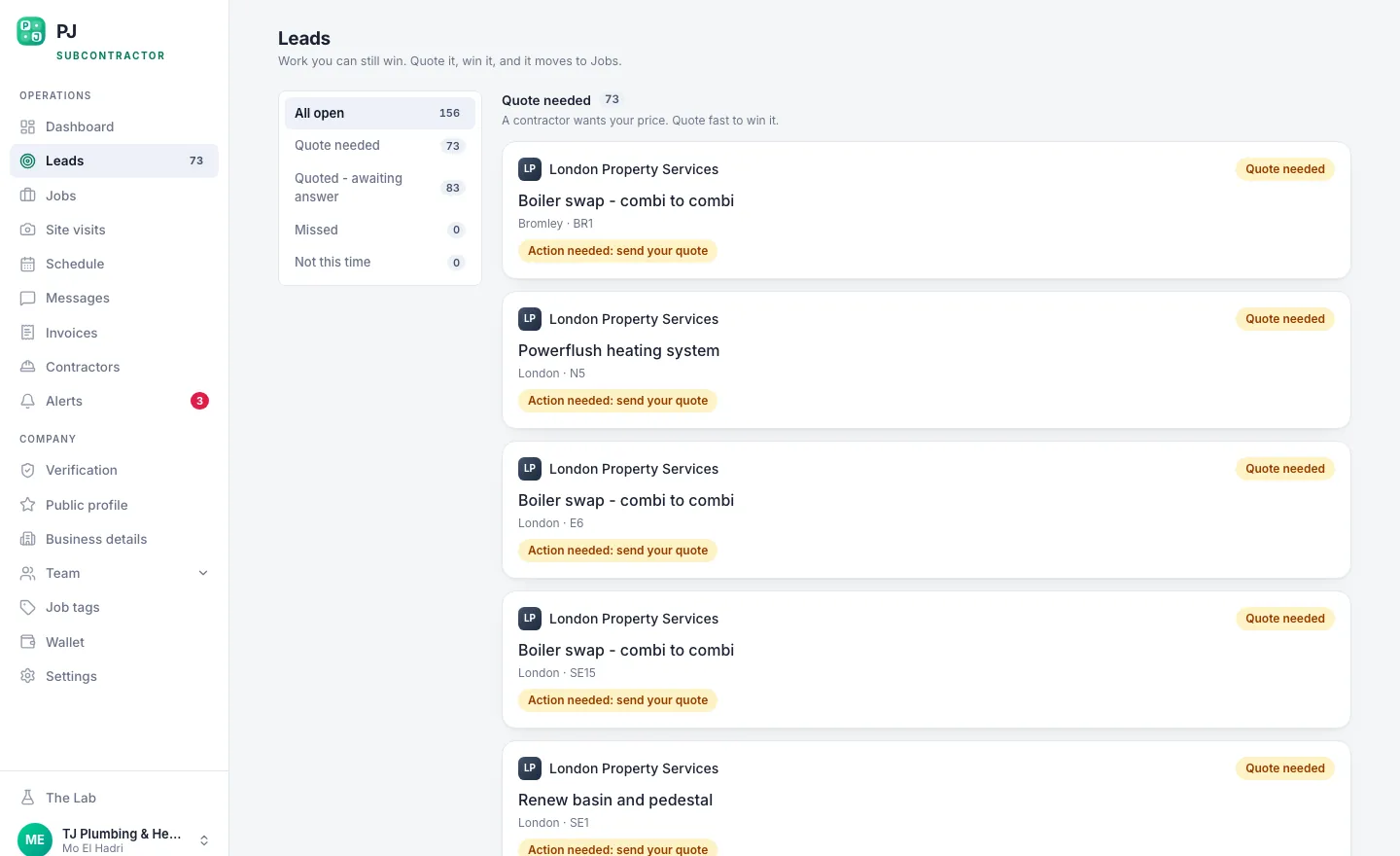 This is what lands on the other end of the offer: scope, area, and the figure on the table.
The figure on the table is your call. Plan@Job doesn't set your prices. Work out your margin before you send it, not after the client has already been quoted.
Daniel Reed, the AI Operations Manager, follows up on quotes and proposed dates so you're not chasing people one by one. He can also support sharing an eligible job with your existing vetted network. He doesn't award the job. That's still you.
Step 4: Check the subbie before you award, not after
In supported workflows a subcontractor can send a price before they've been fully vetted. That's fine. It means you see the market quickly. But price first, check before award. Never the other way round.
Before you award, I'd want to see:
- Insurance that's current and covers the work.
- The registration the law requires for that trade, for example Gas Safe registration under current gas safety rules for any gas work.
- RAMS for the job, or agreement to complete them in RAMS before they start.
- Photos or references from similar jobs.
- A firm proposed date, not "sometime next week".
Then put the terms in Contracts. Scope, price, date, what counts as done.
Here's the part people hate hearing. The cheapest price is rarely the cheapest job. A subbie who has to come back twice costs you more than the one who quoted a bit higher and got it right first time.
Step 5: Award, schedule and keep the client in the loop
Award the job to the subbie you've chosen. It goes into the Schedule and you talk to them through Messages, so the conversation sits with the job and not in your personal phone.
Your client sees their side in the Client portal: the overall agreed scope and price, and the evidence you choose to share. Your internal stage costs and the subcontractor's identity stay internal. Your margin stays yours.
First contact with a client normally needs your approval. The platform won't go off messaging your clients on its own.
Illustrative example
This is a made-up scenario, not a real job. You're a London operator. A letting agent you already work for asks you to sort a leaking shower in a flat in Bristol. You open the job in Jobs, get photos of the leak and the access details, search the Directory for plumbers near the flat, send the brief from the Subcontracting desk to a few of them, check the one you like, award it, and share the finished photos with the agent through the Client portal. You never got in the van.
Step 6: Sign it off from a distance
This is where remote jobs go wrong, so be strict.
- Ask for before and after photos in Job reports. Make it part of the brief, so nobody's surprised.
- Check them against the scope you wrote in Step 1, line by line.
- Raise anything that isn't right as a snag and get it closed before you call the job done.
- Only then raise the invoice in Invoices.
Maya Collins, the AI Finance Coordinator, prepares deposit and overdue payment actions for you to approve. Nothing moves without your say-so.
What the platform does and what you decide
The platform sorts subbies by trade and distance, sends one brief to many, collects the prices, chases quotes and dates, and keeps the messages, reports and invoices on the job.
You decide who's shortlisted, what figure to offer, who gets awarded, whether the checks pass, when the client is contacted and whether the work is signed off. If a decision involves money or a person's word, it's yours.
What usually goes wrong, and how to avoid it
The brief was vague. The subbie turns up, finds something different and rings you for more money. Fix it with photos and a written scope before anyone prices.
You awarded on price alone. Fix it by checking insurance, registration and past work before you award.
You paid or invoiced before you saw evidence. Fix it by making photos in Job reports a condition of the job.
You had one option and they dropped out. Always shortlist more than one.
You didn't spell out who talks to the client. Agree it in Contracts up front.
If you want to talk this through with people who run jobs this way every day, that's what Contractor Club is for.
The next move
Out-of-area work isn't a problem. It's just a job you run through a brief instead of through your own hands. Get the process right once and the map stops deciding which clients you can keep.
If you're a contractor in the UK and you want to run your subcontracting this way, start with Plan@Job for contractors.
FAQ
Do I have to tell the client I'm using a subcontractor?
Check your contract with them. Some clients require you to get approval before you subcontract, and that comes before anything else. Plan@Job keeps the subcontractor's identity internal in the Client portal, but that doesn't change anything you've agreed with the client.
Can a subcontractor quote before they've been vetted?
In supported workflows, yes. That lets you see prices quickly. Do your checks before you award the job, not after the work has started.
Does Plan@Job pick the subcontractor or set the price for me?
No. It ranks the Directory, sends your brief and collects the prices, and Daniel Reed chases quotes and dates. The figure you offer, who gets the job and whether it's signed off are all your decisions.