
To schedule a maintenance job without three rounds of phone calls, put one date on the job record and make everyone work from that record. In Plan@Job, that means checking the brief in Jobs, checking who is free in Schedule, booking the day and the operative on the dispatch screen, then confirming with your client in Messages instead of a separate text thread. The platform holds the date. You still make the decisions.
This guide is for operators. In Plan@Job, an operator is the contractor business that manages clients, project delivery, subcontractors and in-house operatives. If that is you, this is the order to work in.
What confirming with everyone at once really means
It does not mean one button that tells the world. It means one record.
Most missed appointments are copying errors. A date is agreed on the phone, written in a diary, texted to an operative and emailed to a client. That is four copies, and any one of them can be wrong.
The fix is to book the date once, on the job, and send every confirmation from there. The steps below follow that rule.
Step 1: Check the job is ready to book
A date on a vague job is a wasted visit. Check the brief first.
- Open Jobs and open the job you want to book.
- Read the brief as the operative will read it. Look for the address, the fault, access arrangements, parking and who will be on site.
- Check the scope and price match what your client agreed.
- Fill any gaps before you choose a date, not after.
If you use AI staff, Sophie Bennett, the AI Enquiries Coordinator, checks existing job briefs for missing information and asks for clarification. If two attempts do not get an answer, she hands the job back to a person. She does not decide the date and she does not book anyone. You can read what each AI colleague does on the AI staff page.
Who decides: you decide whether the brief is good enough to book.
Step 2: See who is actually free
- Open Schedule.
- Look at the week by person, not just by day.
- Check what sits either side of the gap. A free afternoon after a long job across town is not really free.
- Pick two possible slots, not one. You will need a fallback when access falls through.
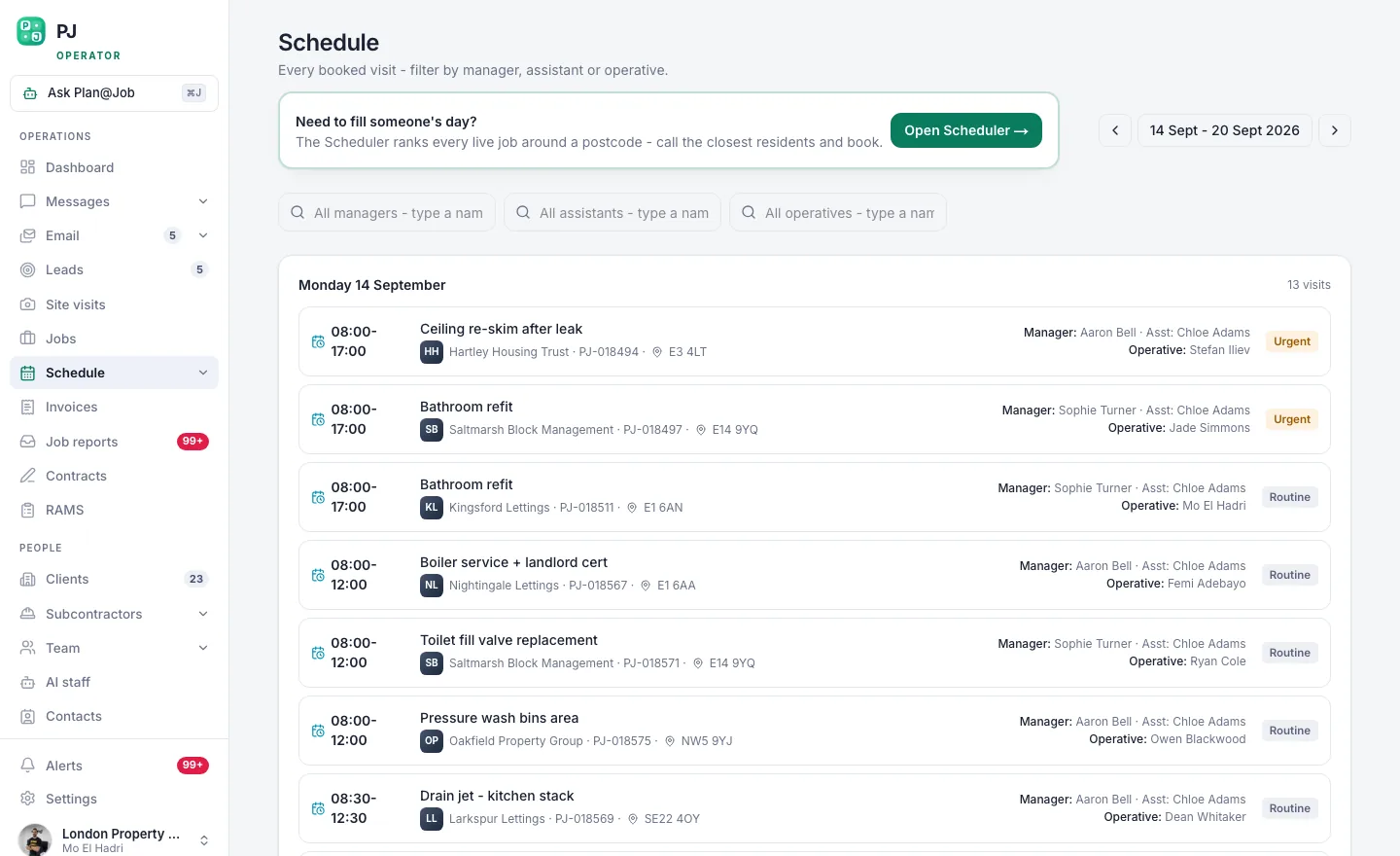 The week, by person, so you can see who is actually free.
Schedule only knows what has been booked into it. If someone is on leave or on a course and nobody has recorded it, the gap will look open. Check before you promise it.
Who decides: you choose the person and the candidate slots. The platform shows you the week.
Step 3: Agree access before you commit
This is the step people skip. It is also the one that causes most wasted journeys.
- Open Messages and write to your client about this job.
- Offer your two slots with a realistic arrival window.
- Ask who will give access: tenant, keyholder, site contact or key safe.
- Wait for a clear yes to one slot. Silence is not a yes.
Keep this conversation in Messages. If the answer lives in Plan@Job, the next person in your office can find it. If it lives on your phone, they cannot.
Where a tenant is involved, telling the tenant is a job for your client or for you, depending on what you have agreed. Settle that now and say it in the message.
Who decides: your client confirms access. You decide whether the answer is firm enough to book.
Step 4: Book the day and the operative
- Open the dispatch screen.
- Find the job in the unbooked work.
- Assign it to the agreed day and the operative you chose.
- Go back to Schedule and check the job shows against the right person on the right day.
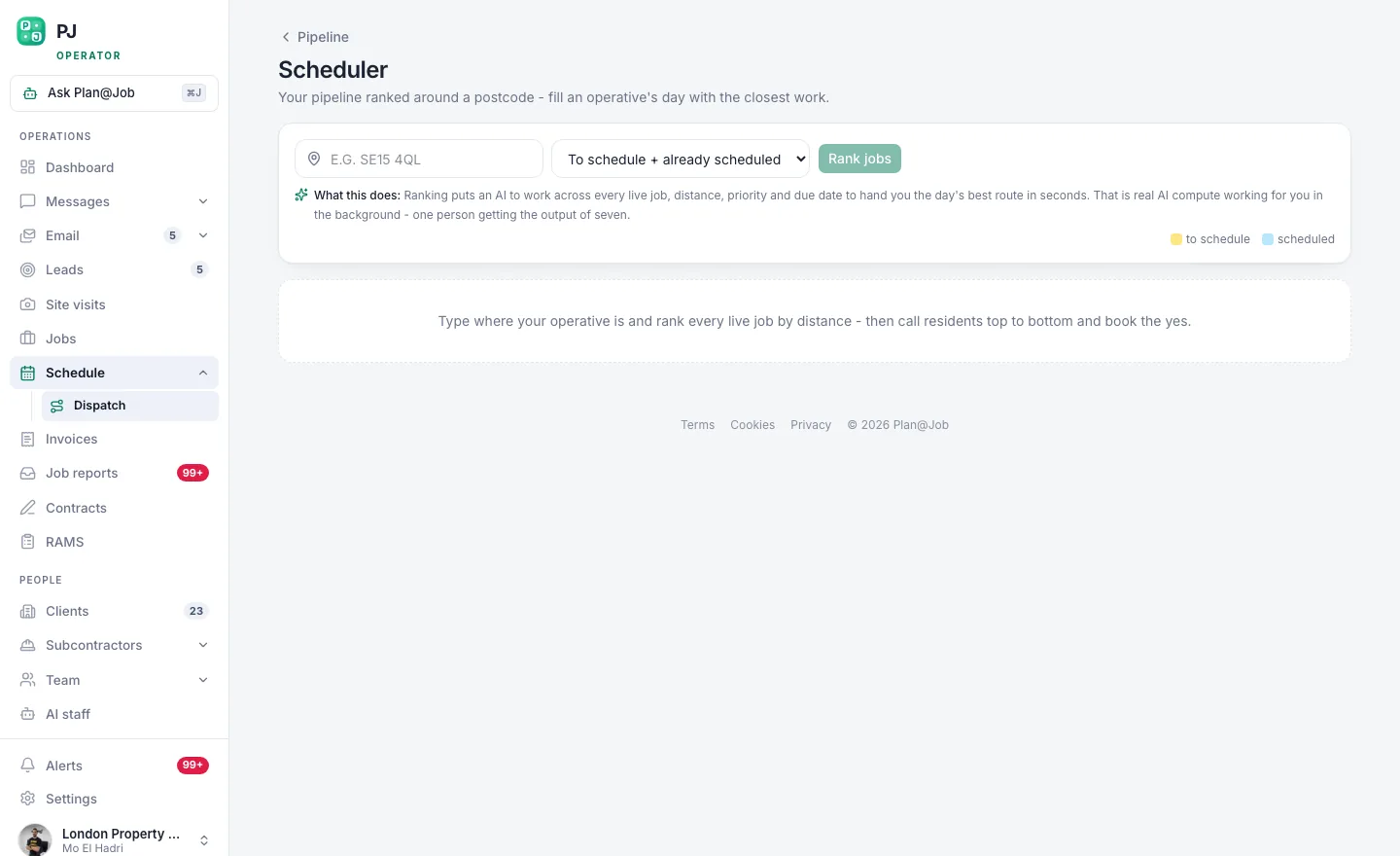 Dispatch is where unbooked work becomes a confirmed date.
That last check takes seconds. Do it every time. It is how you catch a job dropped on the wrong day.
Illustrative example, not a real customer: an operator has a leaking overflow at a let flat. The letting agent confirms the tenant is in on Thursday morning. The operator assigns the job to Thursday and to the plumber who is already nearby on Wednesday afternoon, then checks Schedule. The plumber's Thursday shows the job. Nothing has been written down twice.
If a subcontractor is doing the work
The order changes slightly. The date has to work for the subcontractor before you promise it to your client.
- Open the job and check the scope the subcontractor is working to.
- Ask for a proposed date, or review the one they have sent.
- Check it against the access your client has offered.
- Accept it or ask for another. Then confirm with your client.
If you use AI staff, Daniel Reed, the AI Operations Manager, supports follow-ups on quotes and proposed dates, and gives you a morning brief. He chases. He does not award work, set prices or accept a date for you.
Who decides: you accept or reject the proposed date.
Step 5: Confirm with your client
- Open the job and check the date is the one you agreed.
- Send a short confirmation in Messages: the date, the arrival window and what access you are relying on.
- Ask your client to reply if anything has changed.
Your client also has their own view of the job in the Client portal.
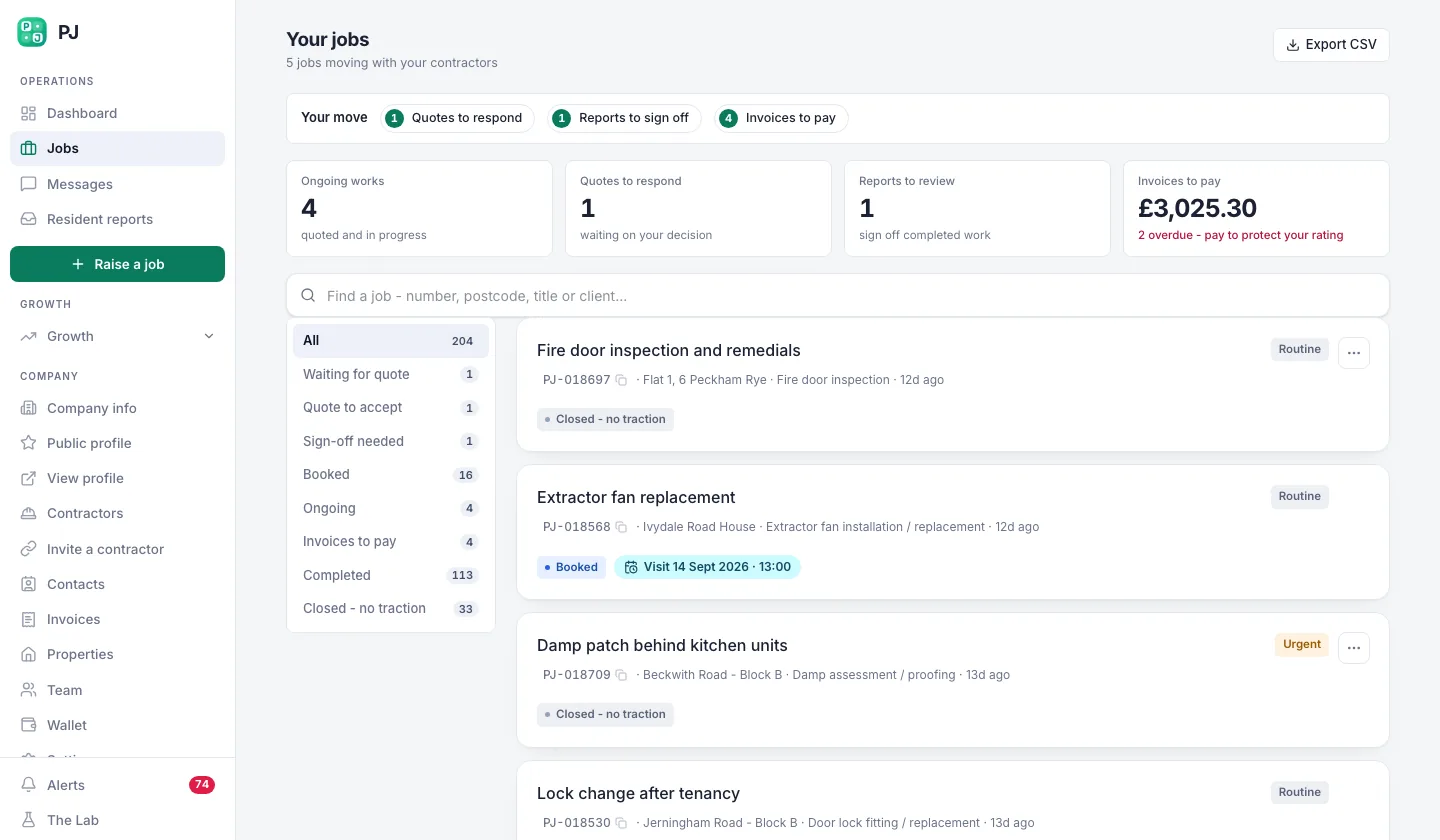 What your property manager sees when they log in: their repairs, not your business.
They see the overall agreed scope and price, and the evidence you share. They do not see your internal stage costs. They do not see which subcontractor you used. So you can run the job your way and still give them a clear picture.
Do not treat the portal as your confirmation. A client who has not logged in has not been told. Send the message.
Bigger jobs: book by stage
Some maintenance jobs are not one visit. A bathroom leak can mean a plumber, then drying time, then a plasterer, then a decorator.
In Plan@Job you can split a job into internal stages. Each stage has its own scope, dates, status and costs, and can be delivered in-house or by a subcontractor. Your client still sees one job with one agreed price.
You set the order and the dates of the stages yourself. Plan@Job does not work out dependencies or a critical path for you. If stage one slips, you move stage two.
See how stages work on the project management page.
Who does what
- You decide: whether the brief is ready, who does the work, which date to offer, and whether to accept a subcontractor's proposed date.
- Your client decides: whether access is available and who lets the operative in.
- The platform does: holds the date on the job, shows it in Schedule against the right person, and gives your client their view of the job.
- AI staff do, if you use them: check briefs for gaps and chase unanswered quotes and proposed dates. They do not book, award or price.
What usually goes wrong
- Booking before access is confirmed. The operative arrives and nobody is in. Get the yes first.
- Confirming outside the job. A text from a personal phone is invisible to your office. Use Messages.
- Changing the date in a call and not on the job. Now the record is wrong and Schedule is wrong. Change the job first, then tell people.
- Trusting a gap in Schedule. Unrecorded leave looks like free time. Record time off as soon as you know about it.
- Promising a subcontractor's date before they have agreed it. Wait for the proposed date. Accept it. Then tell your client.
- A thin brief. No key safe code, no parking note, no fault description. Fix it at Step 1.
Your next step
Take one job you need to book this week and run it through the five steps above, start to finish, without writing the date anywhere else. If the job has more than one trade or visit, set it up in stages using the project management features. If you are not yet using Plan@Job, the UK contractors page explains how it works for operators.
FAQ
Does Plan@Job pick the date for me?
No. You choose the day and the person. Schedule shows you who is booked, and the dispatch screen is where you assign the job. If you use AI staff, they can chase a proposed date that has not been answered, but accepting it is your decision.
Can my client see which subcontractor is doing the job?
No. Subcontractor identity and your internal stage costs stay internal. Your client sees the overall agreed scope and price, and the evidence you choose to share.
What should I do when a booked date has to change?
Change it on the job first, so Schedule is right. Then check access for the new date with your client in Messages, and tell the operative or subcontractor. Do it in that order, so nobody is working from an old date.