
To chase client sign-off without nagging, make the request easy to say yes to before you send a single reminder: one clear report, the evidence attached, a specific question and a date. Most sign-offs stall because the client is unsure what they are agreeing to, or the right person never saw the request. Fix that and the chase becomes one or two short, useful follow-ups instead of a string of 'just checking in' messages. This guide walks through how to do it in Plan@Job as an Operator, meaning the contractor business that manages clients, delivery, subcontractors and its own operatives. It also says plainly which steps need your judgement and which the platform handles.
Why sign-offs stall in the first place
Before you write a reminder, work out why the client has gone quiet. The cause shapes the chase.
- They are not sure the work matches what they agreed. The report lists tasks but not the original scope, so they have to dig.
- The evidence is thin. A few photos with no captions leave them wondering what they are looking at.
- The wrong person has it. The contact who booked the job is not the one who can approve it.
- There is an unspoken snag. They have spotted something small and do not want an awkward conversation.
- It is buried. The request arrived by email alongside twenty other things.
Each of these is fixable at your end. None of them is fixed by asking again in the same words.
Step 1: Get the report right before it leaves
This step is all yours. The platform holds the draft; a person decides what goes to the client.
- Open Jobs and select the job. Read back the agreed scope and price so you are checking the work against the same thing the client remembers.
- Go to Job reports and open the draft for that job. Reports sit as drafts until someone on your team reviews and sends them.
- Check every photo has a short caption saying what it shows and where. 'Bathroom, new extractor fan, ducted to external wall' beats a bare image.
- Make sure any variations agreed during the job are listed, with how they were agreed.
- Write the ask in one sentence at the top. For example: 'Please confirm the works listed below are complete to your satisfaction, or reply with anything you would like us to look at.'
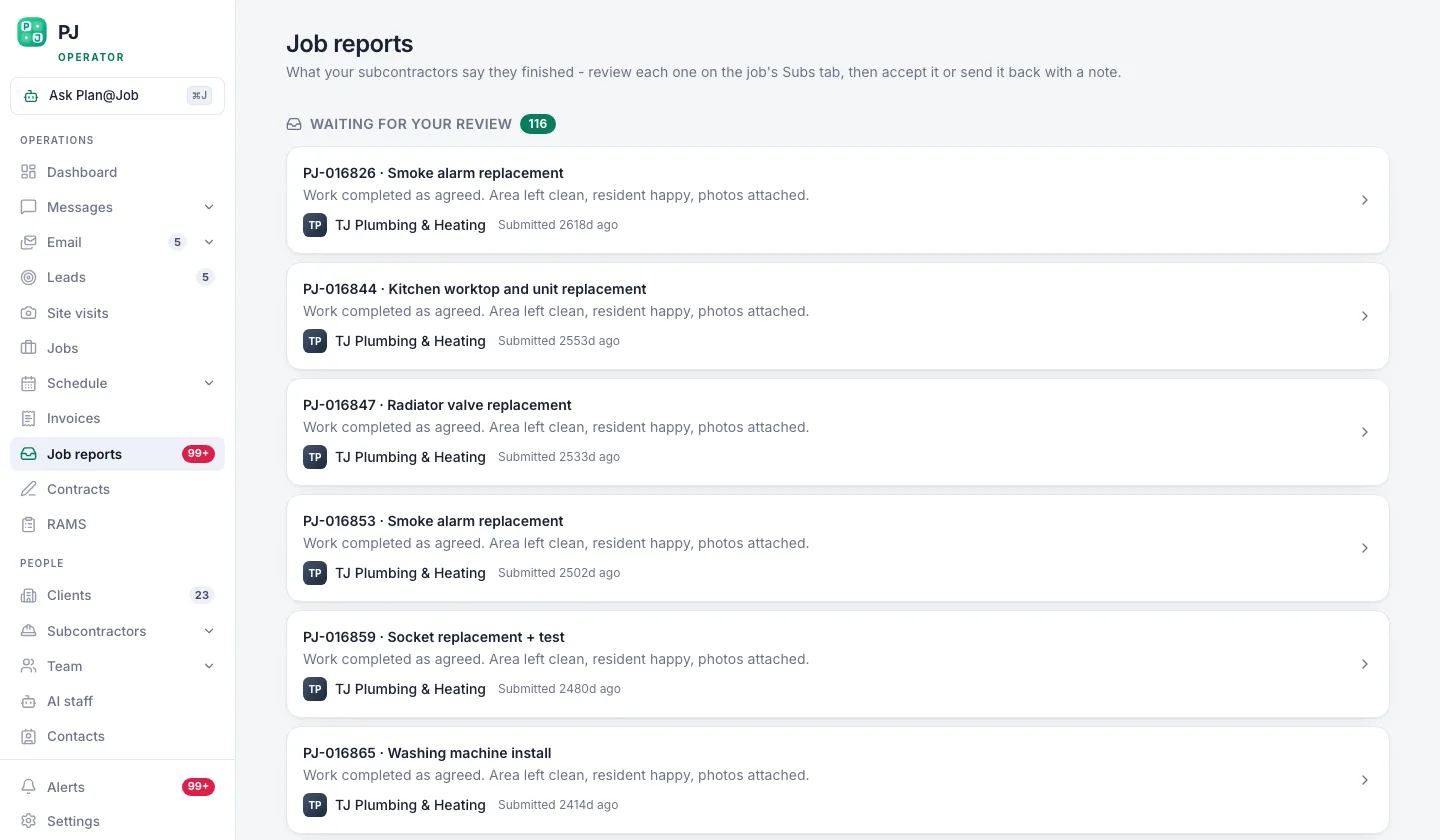 Reports queue up drafted, so a person checks them before a client ever sees one.
Keep internal detail internal
If you ran the job as stages in the project plan, with some stages subcontracted and some done in-house, the client sees the overall agreed scope and price plus the evidence you choose to share. Internal stage costs and subcontractor identity stay internal. Check your own stage notes before writing the report so nothing internal ends up pasted into the client-facing text. You can read more about stages on the project management page.
Check subcontracted work yourself first
Your client signs off the job with you, not with your subcontractor. If a stage was subcontracted, review that work and its evidence before it goes into the report. Asking a client to sign off something you have not checked is how small snags turn into disputes.
Step 2: Send it where the client already looks
- Go to Clients and confirm the contact on the job is the person who can actually approve it. If it is a property manager acting for a landlord, ask early who signs off.
- Send the report from Job reports. Its status moves from drafted to sent, so your team can see where it stands.
- Add one short note in Messages pointing to it. Do not send the same request by email, text and phone at once. One channel, one clear request.
If your client uses the Client portal, they see their own jobs and the evidence you have shared, not the rest of your business. That makes it easier for them to find the report again later without searching their inbox.
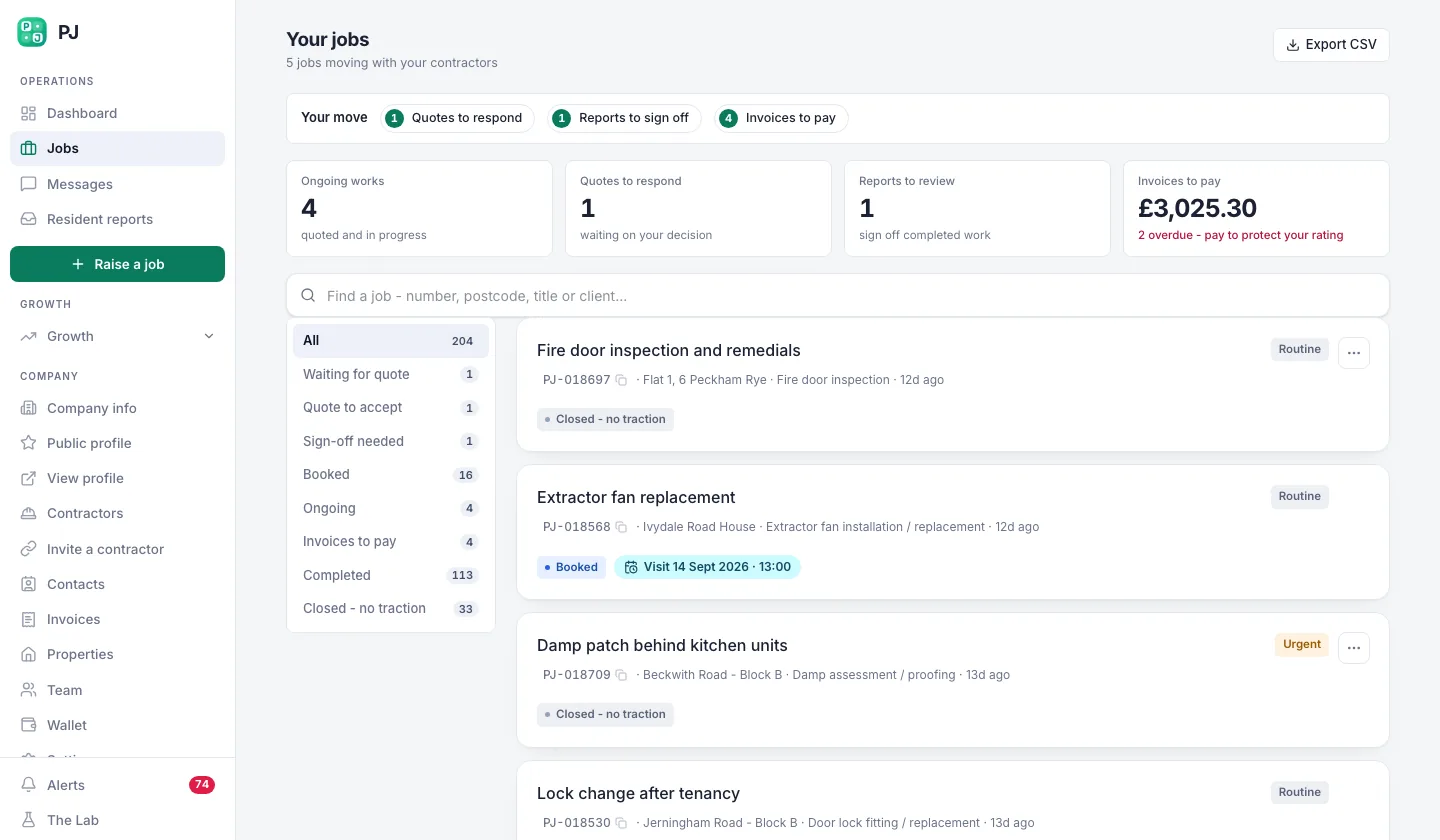 What your property manager sees when they log in: their repairs, not your business.
Step 3: Decide your follow-up dates before you need them
This is a person's decision, and it is best made at the moment you send. Pick a date for a first follow-up and a date for a phone call, and note them somewhere your team will see them. A couple of working days is a reasonable first gap for most small jobs; a larger fit-out with a busy client may need longer. Check what your contract or quote says about completion and sign-off, because some set out a process and many say nothing. If you are unsure what your terms mean, take proper advice rather than guessing.
Writing the dates down at the start stops the two common mistakes: chasing too soon out of anxiety, or forgetting for a fortnight and then sending something sharp.
Step 4: Follow up with something new each time
A follow-up that only repeats the question reads as nagging. A follow-up that adds something useful reads as service.
First follow-up: make it easier
Answer the question they probably have. For example: 'The new consumer unit is in photo 4, with the test certificate attached. Happy to talk you through it if useful.' Send it in Messages on the same thread so the history stays together.
Second follow-up: offer a smaller yes
If they are still quiet, there may be a snag they have not mentioned. Offer to split it: sign off the items they are happy with, and list anything outstanding as a separate snag with a date to return. A partial sign-off with a clear snag list is better than a full one that never arrives.
Then pick up the phone
After two written follow-ups, call. Ask one open question: 'Is there anything stopping you signing this off?' Then record what they say against the job.
Illustrative example (fictional): an operator finishes a kitchen refit for a letting agent. The report goes to the agent's main contact, who forwards it to the landlord and hears nothing. On the second follow-up the operator offers to split the sign-off. The agent replies that the landlord is unhappy with one cupboard door alignment. The operator books a return visit, signs off the rest, and closes the snag the following week.
Step 5: Record the outcome and move to invoicing
- When the client confirms, the report shows as signed off in Job reports. That record is your reference if questions come up later.
- If they raise snags, log them on the job, fix them, update the report and send it again. Do not edit a sent report quietly; the client should see what changed.
- Raise the invoice from Invoices once your terms allow it.
A recorded payment in Plan@Job is a record, not a transfer of money. Payments move between the client and your business through your normal banking.
Where AI staff fit, and where they do not
Plan@Job includes AI colleagues that work in the background of your account. It helps to be clear about what each one does, because chasing sign-off itself stays with you.
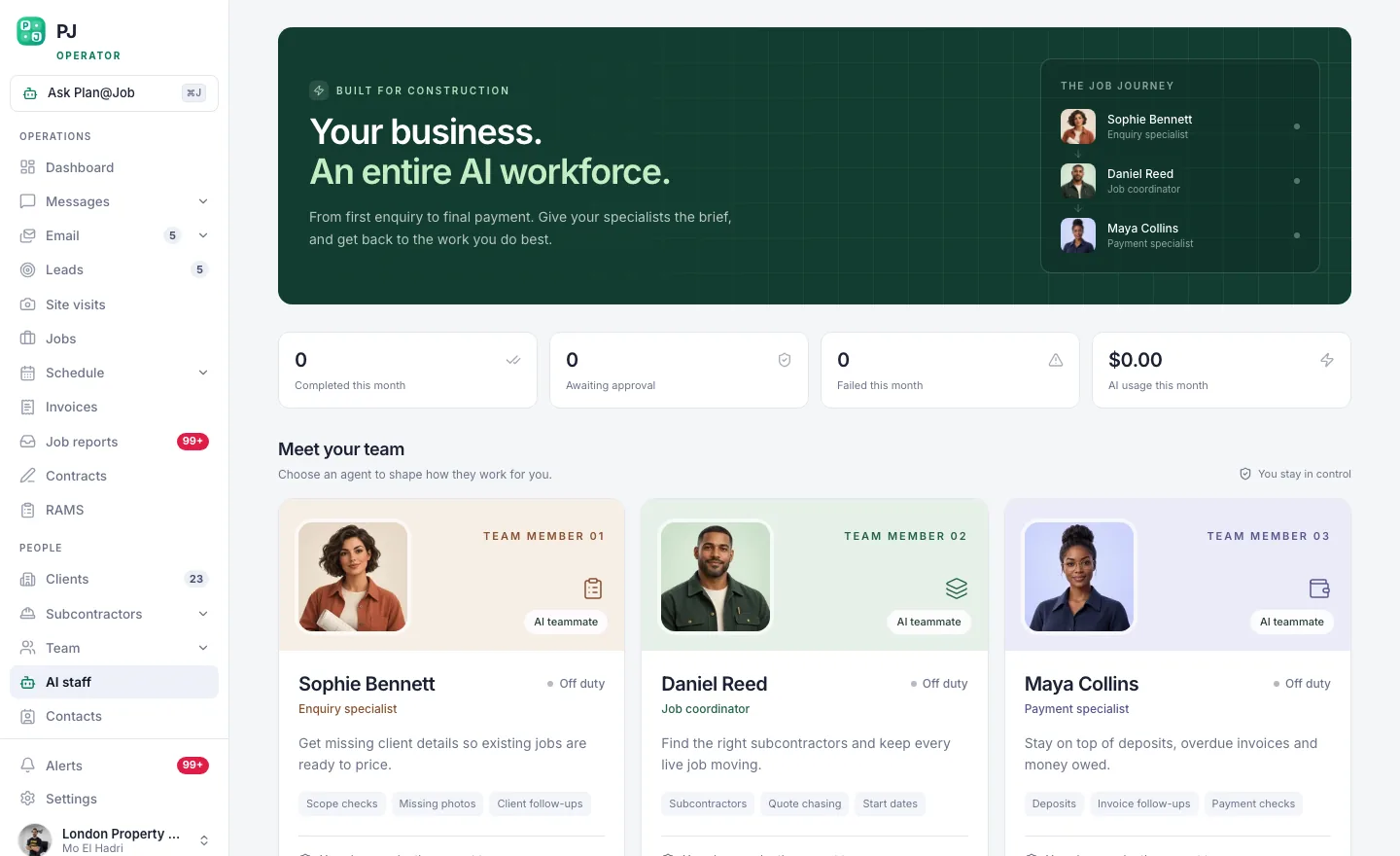 The AI colleagues sit inside the account: Sophie on briefs, Daniel on operations, Maya on money.
- Sophie Bennett, AI Enquiries Coordinator, checks existing job briefs for missing information and asks for clarification, handing over to a person after two attempts. A clearer brief at the start means fewer arguments about scope at the end.
- Daniel Reed, AI Operations Manager, supports quote and proposed-date follow-ups and sends a morning brief. He does not award work or set prices.
- Maya Collins, AI Finance Coordinator, prepares deposit and overdue payment actions for your approval once you have invoiced. Nothing goes out without a person approving it.
The sign-off request, the follow-ups and the phone call are your team's decisions.
What usually goes wrong, and how to avoid it
- Sending a report you have not checked. Always review the draft in Job reports first.
- Chasing the wrong person. Confirm who approves on Clients before you send.
- Changing channels mid-chase. Keep the thread in Messages so nobody loses context.
- Holding the whole invoice over one snag. Offer a split sign-off with a dated snag list.
- Letting tone slip. If you feel irritated, call instead of typing.
If you run jobs for property managers and main contractors, the UK contractors page shows how the Operator side fits together. To see how Sophie, Daniel and Maya can take routine follow-ups off your plate while you keep the decisions, have a look at AI staff.
FAQ
Can Plan@Job chase client sign-off automatically?
No. Your team sends the report and decides when and how to follow up. AI staff help elsewhere: Sophie with job briefs, Daniel with quote and proposed-date follow-ups, and Maya with payment actions that you approve.
What if the client never signs off at all?
Check what your contract or quote says about completion, keep a clear record of the report, the evidence and every follow-up, and talk to the client directly. If it becomes a dispute, get proper advice based on your own terms.
Does my client see which subcontractor did the work?
No. The client sees the overall agreed scope, price and the evidence you share. Internal stage costs and subcontractor identity stay internal to your account.