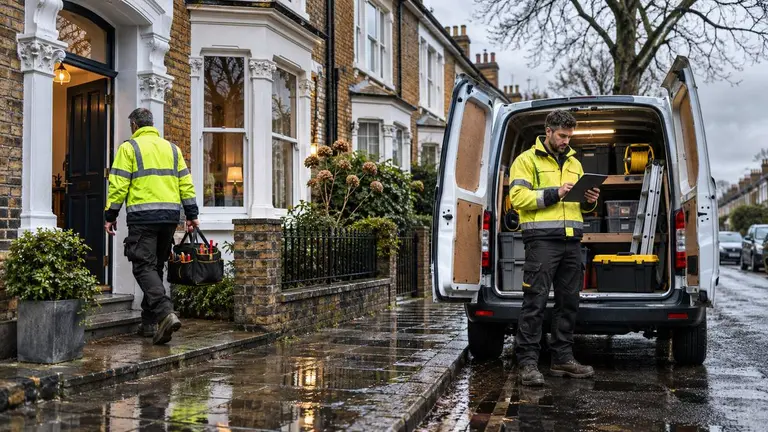
Emergency repair scheduling works when you decide in advance how much of each week belongs to planned work and how much stays open for call-outs. Without that rule, every burst pipe or failed lock pulls an operative off a booked job, the planned client gets a vague apology, and nobody rebooks the work properly. This guide is for operators, meaning contractor businesses that manage their own clients, project delivery, subcontractors and in-house operatives. It walks through the order to handle an emergency in Plan@Job, which steps the platform helps with, and which ones need your decision.
Set the rules before the phone rings
Most emergency chaos is decided weeks earlier, when nobody agreed what an emergency is or what happens to planned work when one lands. Sort this out once and write it down.
- Define an emergency with each client. Typical examples are active water ingress, loss of heating or hot water for a vulnerable occupant, an insecure property, or anything electrical or gas related that is unsafe. Gas work must follow current gas safety rules and be done by suitably registered engineers. Agree response expectations in the client's terms, not yours.
- Decide your reserve capacity. Some operators keep one operative lightly booked each day. Others leave afternoons looser. There is no right answer, but there should be a rule.
- Tell planned-work clients how disruption is handled. If a refurbishment client knows that a moved day gets a new confirmed date within a set time, a change is an inconvenience rather than a broken promise.
- Know your cover before you need it. Check the Subcontractors screen for who you already trust for each trade and area, and make sure their details and paperwork are current.
All four of these are people decisions. The platform holds the information, but it does not decide what counts as urgent for your clients.
Step 1: Log the emergency as a job straight away
The first instinct is to ring an operative. Log the job first, even if it takes a minute, because everything after this depends on a single record.
- Open Jobs and create the job against the right client from Clients.
- Record the address, access arrangements, site contact, what has happened and any photos the caller can send.
- Mark it clearly in the job description as an emergency so anyone opening it understands the priority.
If the brief is thin, Sophie Bennett, the AI Enquiries Coordinator in AI staff, can check the existing job brief for missing information and ask for clarification. If she does not get a usable answer after two attempts, she hands it back to a person. She does not turn every incoming email into a job on her own, so the decision to open the job is still yours.
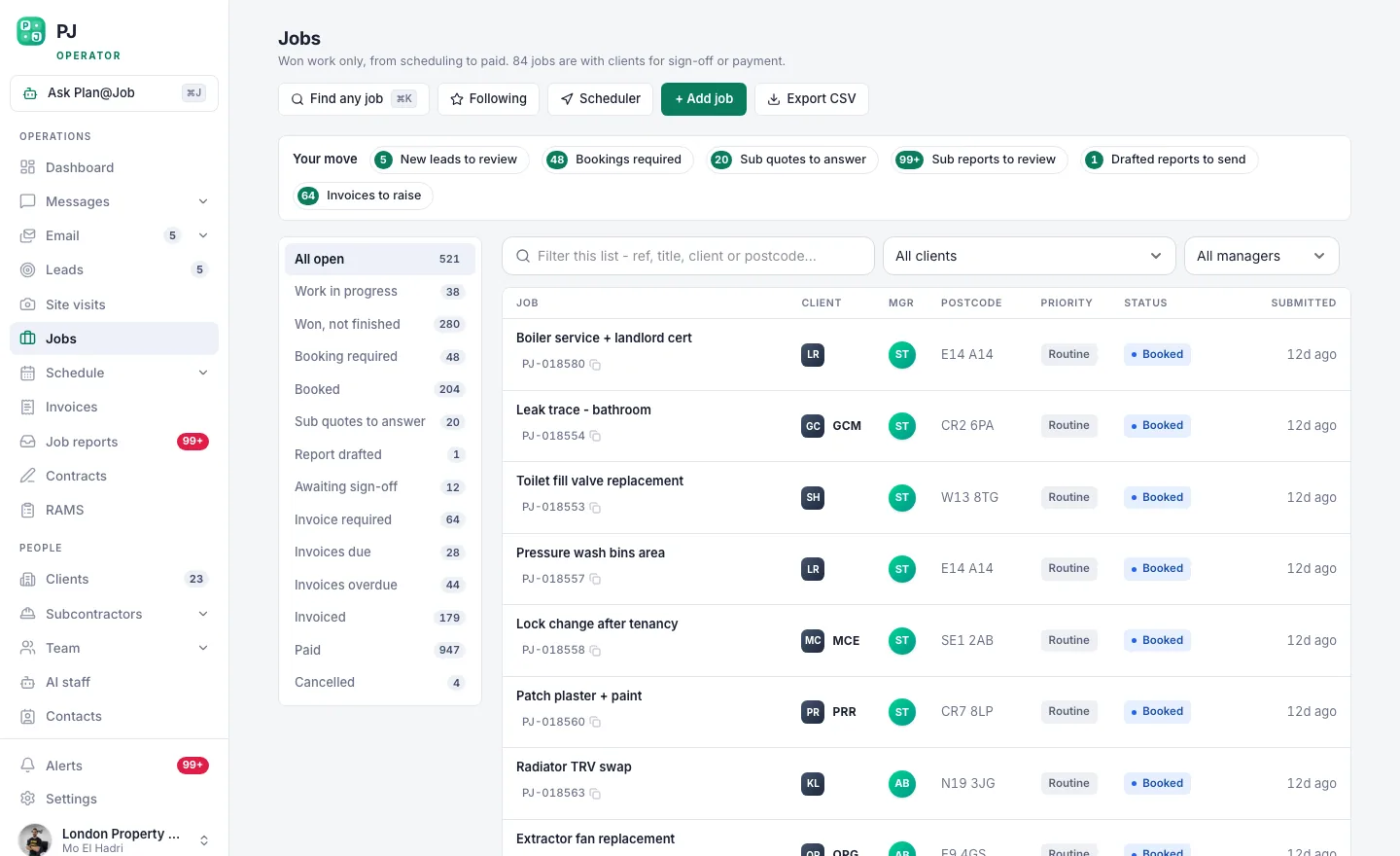 Every won job in one list, filtered by the stage it is stuck at.
Step 2: Triage make-safe versus full repair
Not every emergency needs a full repair today. Often it needs a make-safe today and a proper repair once parts, access or a second trade are available. This is a person's call, usually made by whoever knows the trade and the client.
Ask three questions:
- Is anyone at risk, or is the building at risk of further damage, if nobody attends today?
- Can a competent operative make it safe in a short visit?
- Does the permanent fix need materials, a second trade or a quote approval?
For anything bigger than a single visit, use the project plan on the job. Split it into internal stages, for example a make-safe stage and a permanent repair stage, each with its own scope, dates, status and costs. A stage can be delivered by your own operatives or subcontracted. The client sees the overall agreed scope and price plus any evidence you share. Internal stage costs and which subcontractor did the work stay internal.
Step 3: Find who can actually go
Open Schedule and look at the week by person. You are looking for the operative with the right skills who is nearest, or whose current job is easiest to move.
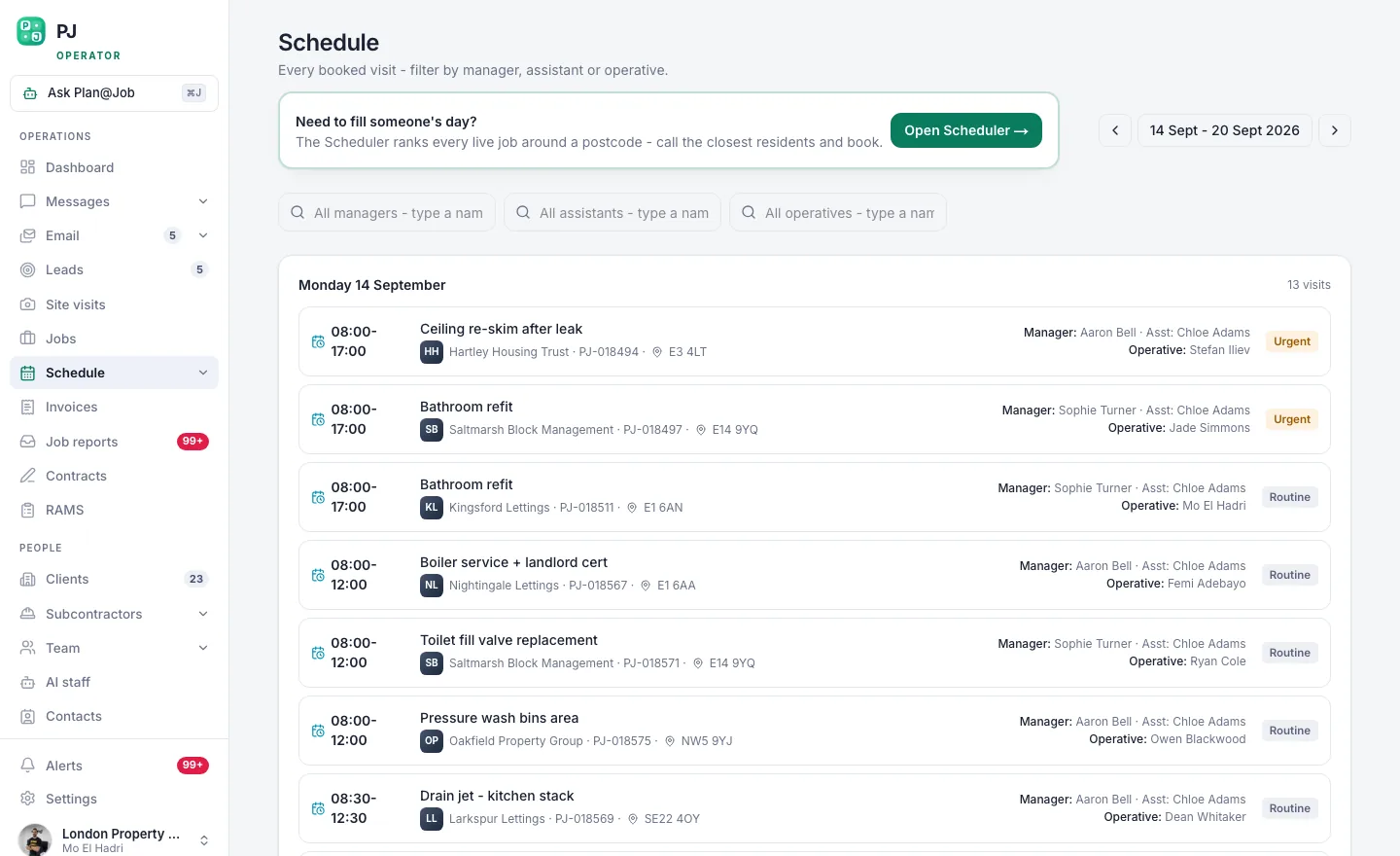 The week, by person, so you can see who is actually free.
Before you send anyone, check:
- Their competence for the task, especially for gas, electrical or work at height.
- Whether the job needs task-specific RAMS. If it does, prepare or update them in RAMS rather than relying on a generic set.
- Whether they have the materials, or can collect them on the way.
Choosing who goes is your decision. The Schedule shows availability. It does not know that one operative is better with a particular client.
Step 4: Move or cover the planned work
This is where most operators lose control. You have three options, in rough order of preference.
- Absorb it. Send your reserve operative if you kept one free. Planned work stays untouched.
- Cover it. Use Cover a job or the Subcontracting desk to bring in an external subcontractor, either for the emergency or for the planned job you are pulling someone from. Daniel Reed, the AI Operations Manager, can support eligible sharing with your existing vetted network and follow up on quotes and proposed dates. He does not award work or set prices. You review the responses and approve who does the job.
- Move it. Pull the operative and rebook the planned job.
In supported workflows, a subcontractor may price before they are fully vetted. That is useful when you need options fast, but complete your checks and approval before you hand over the job.
Step 5: Rebook displaced work on the dispatch screen
Any planned job you moved needs a new confirmed date, not a note to sort it later. Put it back into the unbooked work on the dispatch screen and assign it to a day and an operative.
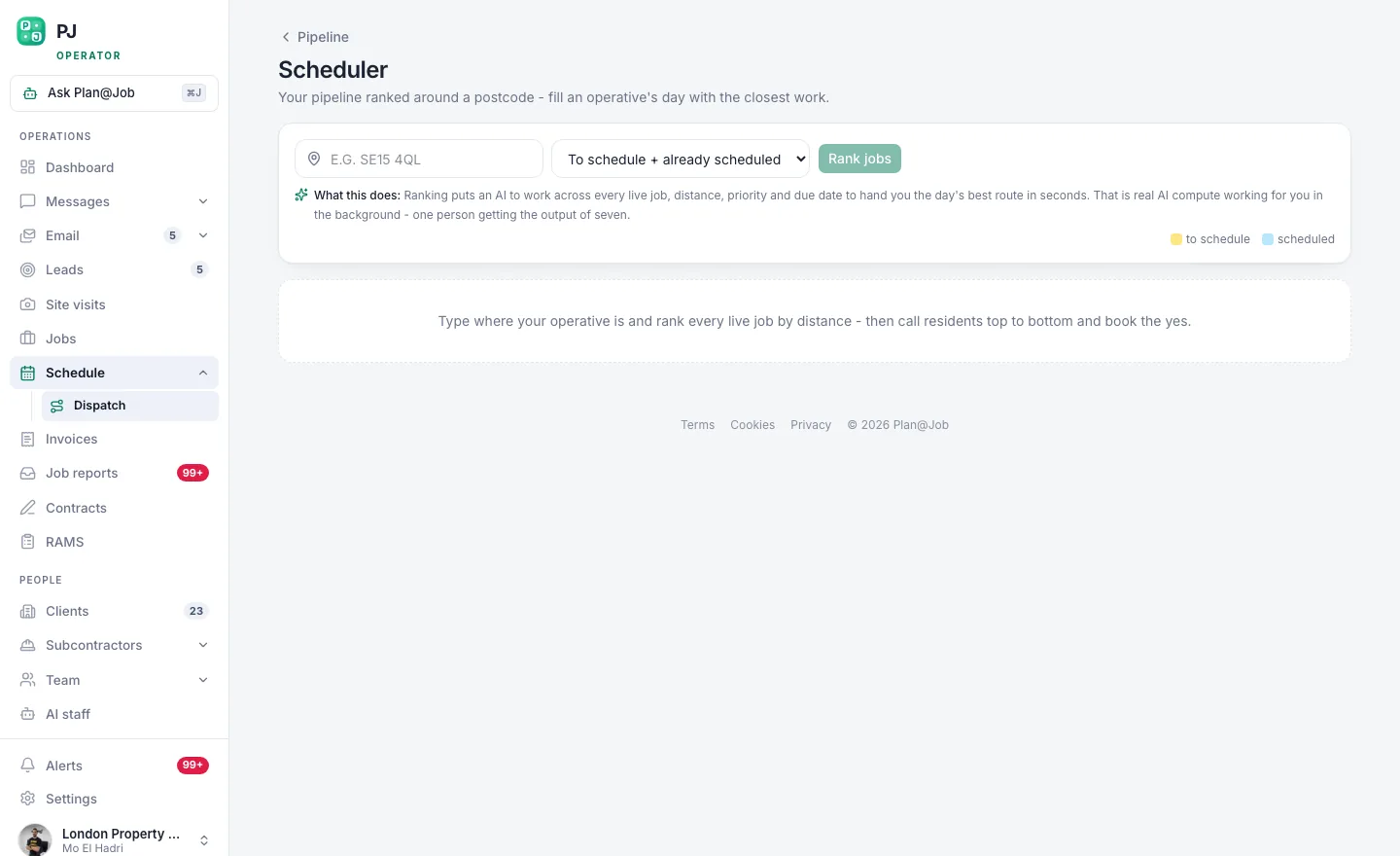 Dispatch is where unbooked work becomes a confirmed date.
Do this the same day as the emergency. Then filter Jobs by the booking-required stage at the end of the day. Anything still sitting there is a client waiting for an answer.
Step 6: Tell everyone what changed
Two clients need to hear from you: the one with the emergency and the one whose planned work moved.
- Use Messages to confirm attendance times and the new date for displaced work.
- Share photos and progress through the Client portal where the client has access, so they can see evidence rather than take your word for it.
- Brief the operative and any subcontractor on access, parking and site contacts.
First contact with a client normally needs a person's approval. Write the message for the moved client yourself. It is a relationship moment, not an admin task.
Step 7: Close out properly
Emergency jobs are the ones most likely to be left half-recorded.
- Complete the Job reports with before and after photos, what was done and what still needs doing.
- If a permanent repair is still needed, update its stage in the project plan with dates and status so it does not drift.
- Raise the invoice from Invoices once the work and any variations are confirmed. Maya Collins, the AI Finance Coordinator, can prepare deposit and overdue payment actions for your approval, following fixed finance workflows.
The next morning, Daniel's morning brief can help you spot anything left open from the day before.
Illustrative example
This is a fictional scenario. An operator has two operatives on a kitchen refit for one client and a third on planned maintenance visits. A letting agent client reports water coming through a ceiling. The office logs the job in Jobs, decides on a make-safe today, and sees in Schedule that the maintenance operative's afternoon visit is easiest to move. They send that operative, offer the afternoon visit to a known plumber through Cover a job, approve the plumber after checking their details, and confirm the new arrangement to the maintenance client in Messages. The permanent ceiling repair becomes a second stage with its own date.
What usually goes wrong
- No reserve, every time. If every day is fully booked, every emergency breaks a promise. Protect some capacity.
- Calling before logging. The job gets done, but nobody can invoice it properly or see why the planned job moved.
- Displaced work never rebooked. Moved jobs sit in limbo. Rebook on dispatch the same day.
- Make-safe treated as the fix. The permanent repair is forgotten until the client chases. Split it into its own stage.
- Silence to the planned client. A short, honest message with a new date does more than an apology a week later.
Your next step
If you want emergencies and planned jobs in one plan instead of across texts and whiteboards, see how Plan@Job project management handles stages, dates and in-house or subcontracted delivery. You can also read how Plan@Job works for UK contractors or see what the AI staff can and cannot do for you.
FAQ
Does Plan@Job decide which job gets bumped for an emergency?
No. The Schedule and dispatch screens show who is booked and what is unbooked. Choosing which planned job to move, and who attends the emergency, is your decision.
Can the AI staff send a subcontractor to an emergency automatically?
No. Daniel can support eligible sharing with your existing vetted network and follow up on quotes and proposed dates. You review responses and approve who does the work.
Should a make-safe and a permanent repair be one job or two?
Keep them on the same job, split into separate stages in the project plan. Each stage then has its own scope, dates, status and costs, and the client still sees one agreed scope and price.