
Dispatch scheduling for contractors goes faster and breaks less often when you do it in one fixed sitting each week, working from a clean list of unbooked jobs. The routine is simple. Check what is actually ready to book, give each job a day and a person, read the week back by operative, then send it out. This guide walks through that routine in order inside Plan@Job. It also says plainly which steps are your call and which the platform handles.
In Plan@Job, the Operator is the contractor business running the work. That means your clients, your project delivery, your subcontractors and your own in-house operatives. If that is you, this is your weekly routine.
Why one sitting beats booking as you go
Booking jobs one at a time, as they come in, feels responsive. In practice it causes most of the problems you spend the week fixing.
You book a job for Tuesday without seeing that the same operative is already across town. A two-day job lands in the middle of the week and pushes three small ones. An operative finds out about a Thursday job on Wednesday night.
One sitting gives you the whole picture before anything is committed. You can group work by area, protect the fixed dates, and see gaps while there is still time to fill them. Pick a regular slot, such as Friday afternoon or Monday first thing, and keep it.
Before you start: get the list ready to book
Most bad dispatch comes from booking jobs that were never ready. Spend the first part of the sitting on this.
- Open Jobs and review everything not yet booked. For each job, ask whether an operative could turn up and do it. That means a clear scope, the address, access arrangements, materials and the client's availability.
- Chase the gaps. If a job brief is missing information, Sophie Bennett, the AI Enquiries Coordinator, checks existing job briefs and asks for clarification. If she has not got what is needed after two attempts, the job comes back to a person. Sophie works on job briefs you already have. She does not turn every incoming email into a job.
- Check Site visits. Anything that still needs a survey before it can be priced or planned is not ready to dispatch. Book the visit instead of the job.
- Check what you are waiting on from subcontractors. Daniel Reed, the AI Operations Manager, follows up quotes and proposed dates. His morning brief gives you a starting view of what is outstanding. A proposed date is still only proposed until you accept it.
- Note who is available. Before you assign anything, know who is on holiday, on training or without a vehicle that week.
Your decision here: whether a job is ready. The platform holds the list and the AI staff chase information. Only you can say a job is good to book.
You can read more about what each AI colleague does on the AI staff page.
Dispatching: give each job a day and a person
Now work through the ready list on the dispatch screen. This is where unbooked work gets a date and an owner.
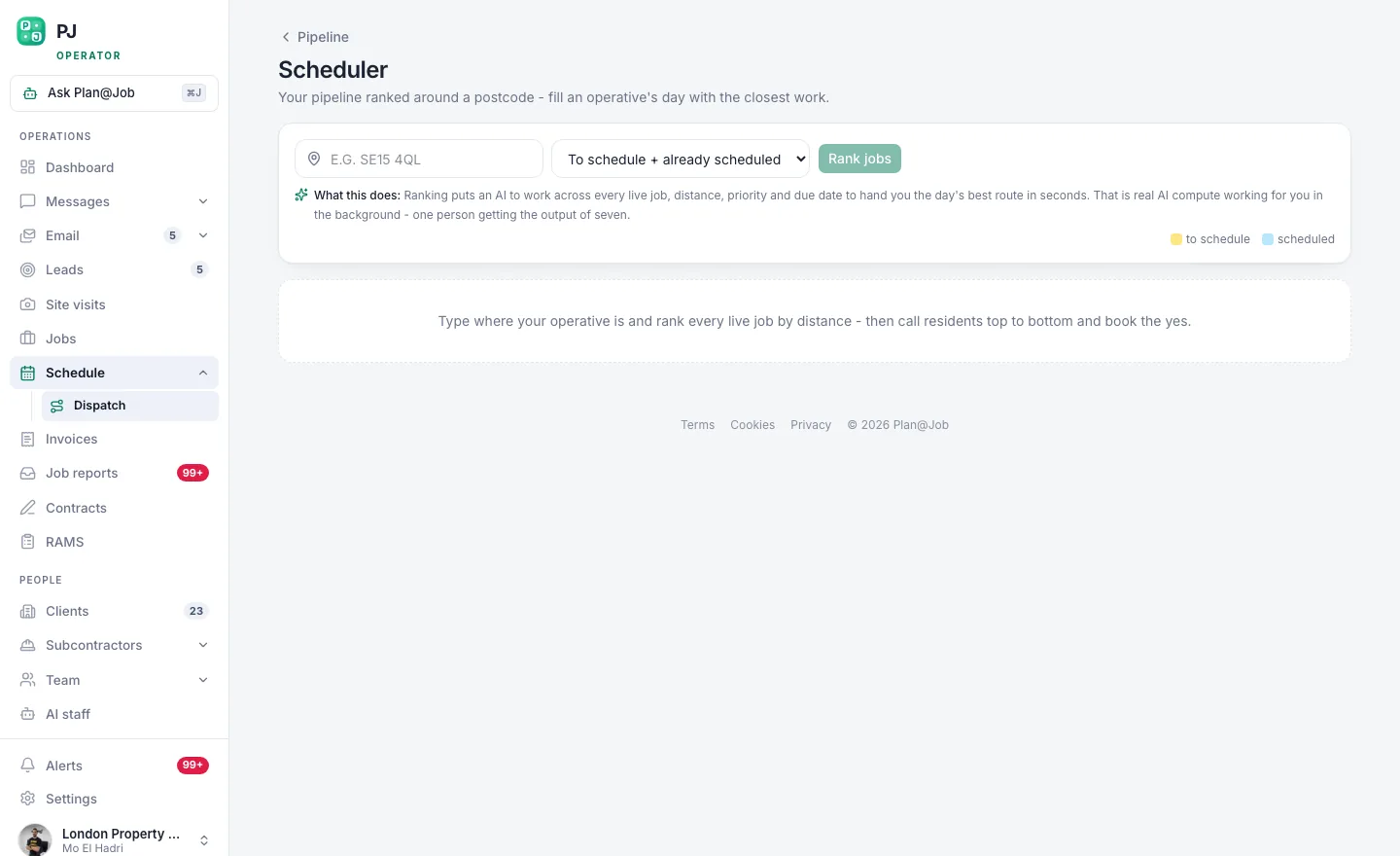 Dispatch is where unbooked work becomes a confirmed date.
- Book fixed dates first. Anything tied to a client commitment, an inspection, a follow-on trade or a tenant appointment goes in before anything else. These are the jobs that cost you most if they slip.
- Then group by area. Put jobs that are close together on the same day for the same person. It cuts travel and makes late changes easier to absorb.
- Match the job to the person. Assign by skill and experience, not just by who has an empty slot. A job booked to the wrong trade is a wasted visit.
- Leave slack. Do not fill every slot. Emergencies, overruns and return visits will come. A day with some room in it is easier to protect than a full one.
- Plan multi-stage jobs as a project. For larger work, split the job into internal stages in the project plan. Each stage has its own scope, dates, status and costs, and each can be delivered in-house or subcontracted. Plan@Job does not work out dependencies or a critical path for you, so set the stage order and dates yourself. Your client sees the overall agreed scope and price, plus any evidence you share. Internal stage costs and subcontractor identity stay internal.
- Decide what goes out to subcontractors. For work you will not cover in-house, use Subcontractors, Cover a job or the Subcontracting desk, depending on how you work. Daniel can support eligible sharing with your existing vetted network. Choosing who gets the work, and at what price, stays with you. Some subcontractors may price before vetting in supported workflows, so before you award, check they have cleared whatever your business requires for that job.
Your decision here: every assignment, every date and every award. The platform shows you the unbooked work and records what you decide. It does not award work or set prices on its own.
Read the week back by person
Once everything is assigned, stop and check it before anyone hears about it. This step catches most mistakes.
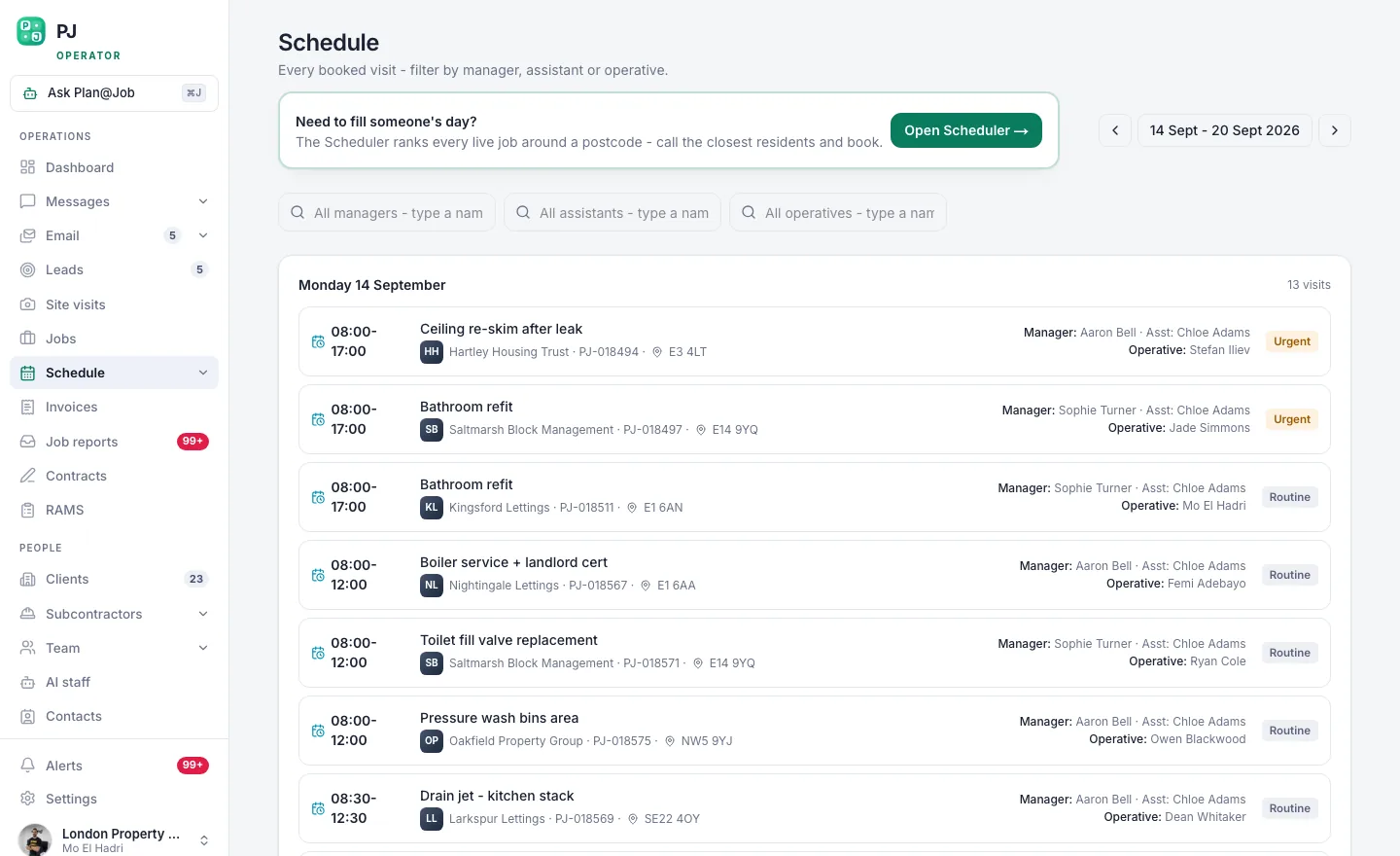 The week, by person, so you can see who is actually free.
- Open Schedule and read across each person, one row at a time. Look for:
- days with more work than one person can finish
- days with nothing booked that could take a job from an overloaded day
- routes that zigzag across your patch
- jobs booked against someone you noted as unavailable
- multi-stage jobs where a later stage is booked before an earlier one
- Fix everything in this sitting. Move jobs while nobody has been told yet. Changes are cheap now and expensive on Wednesday.
- Confirm dates with clients. Contacting clients about appointments is a person's job, or at least needs a person's approval. Use Messages or your usual route. Where AI staff would make first contact with a client, that normally waits for your approval.
Send the week out to your operatives
When the week reads right, your own people need to see it.
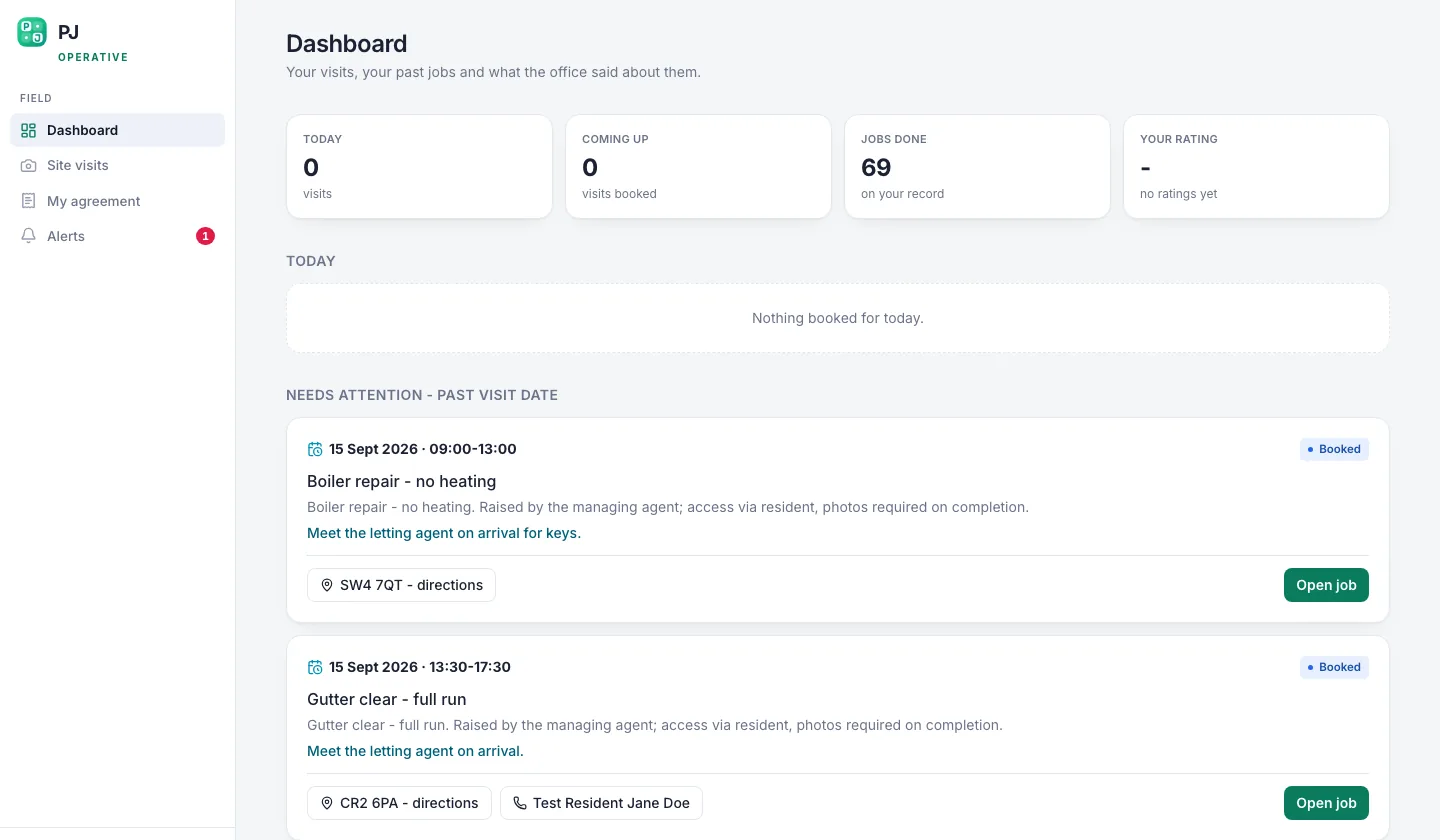 The operative portal is the one your own people use on site.
- Point each operative to their jobs. The operative portal shows each team member the jobs assigned to them. Set up and manage your team members under Team.
- Make mid-week changes in Plan@Job, not just by phone. If you move a job on Wednesday, update it in the system as well as ringing the operative. Otherwise the portal and the schedule stop matching what is really happening.
- Use the morning brief as a daily check. The weekly sitting does the heavy lifting. A short look each morning catches what has changed overnight.
Who does what
It helps to be clear about the split, so nothing falls between the gaps.
Plan@Job handles:
- holding the list of unbooked jobs and the dispatch view
- showing the week by person in Schedule
- showing each operative their assigned jobs
- checking job briefs for missing information and asking for it (Sophie)
- following up subcontractor quotes and proposed dates, and the morning brief (Daniel)
A person decides:
- whether a job is ready to book
- who does each job and on which day
- which subcontractor gets work, and at what price
- what is said to the client, and when
What usually goes wrong
A few problems come up again and again in weekly dispatch.
- Booking jobs that are not ready. The operative arrives without access or materials. Fix it by being strict in the first part of the sitting.
- Filling every slot. One overrun knocks out the rest of the week. Keep some slack each day.
- Treating a proposed date as confirmed. A subcontractor's proposed date is a starting point. Accept it before you build around it.
- Skipping the by-person read-back. The dispatch screen tells you what is booked. Schedule tells you whether it is workable. Do both.
- Changes made only by phone. If it is not in Plan@Job, the next person to look at the schedule will not know.
Your next step
If most of your week is single-visit jobs, the routine above is enough. If you run larger jobs with in-house and subcontracted stages, set them up as projects first so dispatch has clear stages and dates to work from. See how the project plan in Plan@Job works, then try it on next week's work. For an overview of the operator side of the platform, visit Plan@Job for contractors.
FAQ
How often should I run a dispatch sitting?
Once a week at a fixed time works for most operators, with a short daily check against the morning brief. If your work is mostly reactive, you may also want a shorter mid-week sitting to rebalance.
Can Plan@Job book the week for me automatically?
No. The AI staff chase missing information and follow up quotes and proposed dates, but you assign the work. Plan@Job does not award jobs, set prices or work out stage dependencies on its own.
Will my client see which subcontractor is doing their job?
No. The client sees the overall agreed scope and price, plus any evidence you choose to share. Internal stage costs and subcontractor identity stay internal to your business.