
Property maintenance software for agents only works if the agent actually uses it. That's the whole game. To get a property manager raising repairs in your system, send them your invite link, sit with them for the first repair, then reply faster through the system than you ever did on WhatsApp. If it's the easiest way for them to get a job done, they'll keep using it. If it's a chore, they'll go back to emailing you at 9pm.
This guide is for operators. In Plan@Job, the Operator is the contractor business in the middle. You manage the clients, deliver the jobs, and run your subcontractors and in-house operatives. The letting agent or property manager is your client. Here's how to get them raising work in your account, step by step.
Why you want repairs raised in your system, not on your phone
When I ran my property maintenance company in London, most of the work came from letting agents and housing associations. It came in every way possible. Email, WhatsApp, a voicemail from a negotiator who'd half-read the tenant's message.
The rule I ended up living by: if a repair isn't written down against an address, it doesn't exist.
A repair raised in your system arrives with the property, the description and the photos in one place. A repair raised on WhatsApp arrives as 'tap leaking flat 3 can someone go today'. Then you spend twenty minutes finding out which building, which tap and who has the keys. That's not admin. That's your margin walking out the door.
Step 1: Send the property manager your invite link
Start in Invites. That's where you'll find the link that connects a property manager to your business.
- Open Invites from the menu.
- Copy the shareable property manager link.
- Send it to the person who actually raises repairs at the agency. Often that's not the director you met. It's the property manager or maintenance coordinator who's on the phone to tenants all day.
- Send it yourself, with a short personal message. Not a mass email.
Something like this (example wording only, make it sound like you):
'Hi, from now on can you raise repairs for us through this link? You pick the property, add photos, and you can see where every job is up to without chasing me. Takes two minutes to set up. I'll do the first one with you if you like.'
You decide who gets the link. The platform handles the account and connects it to you.
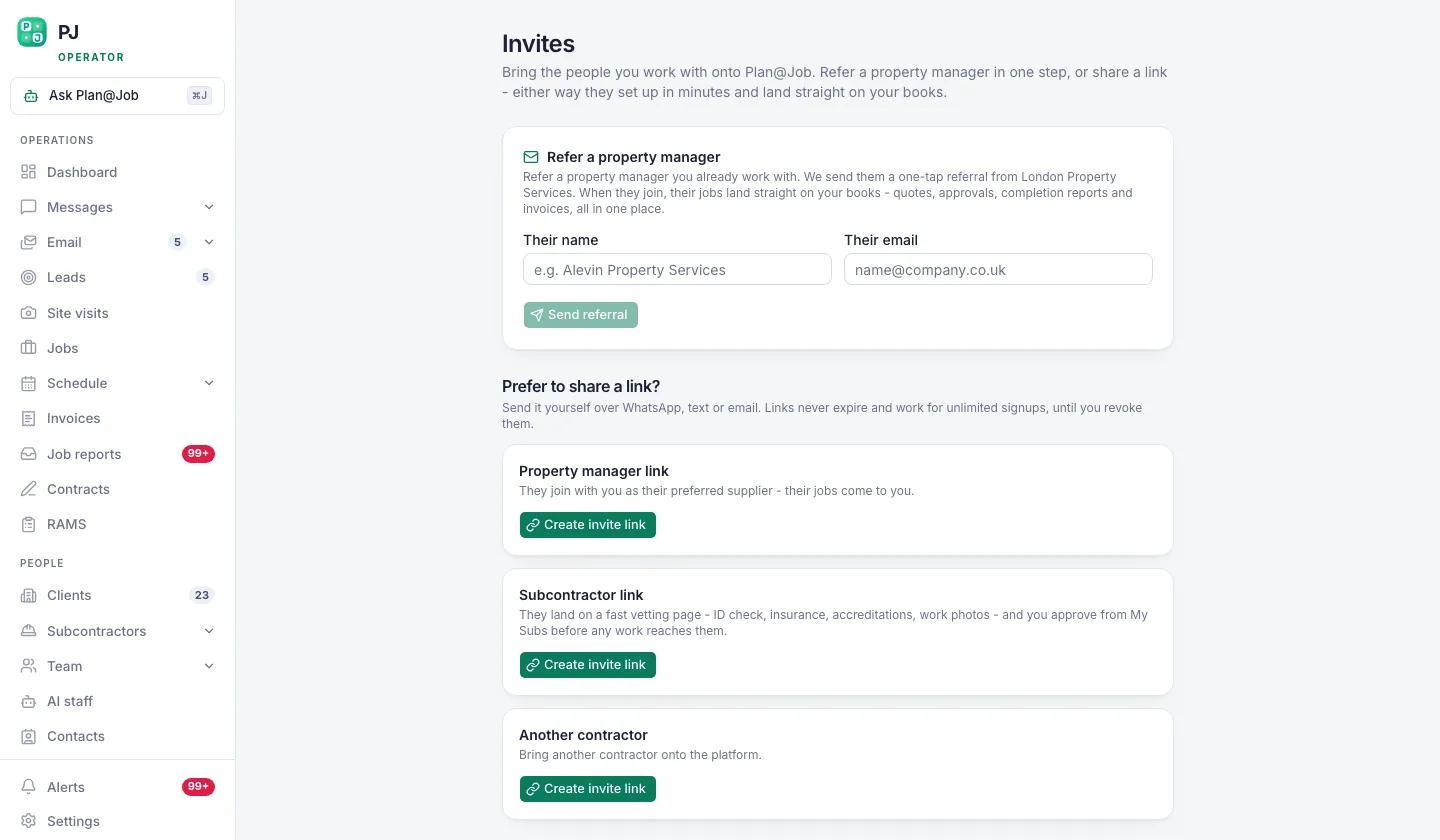 The invite link is what turns a property manager into an account that raises repairs in your system.
Step 2: Sit with them for the first repair
Don't send a PDF guide. Nobody reads it. Get on a call or a screen share and do the first repair together. It takes ten minutes.
- They log in through the link.
- They pick the property the repair is for.
- They describe the fault and attach photos.
- They submit it.
While you're on the call, tell them what a good brief looks like. That's the bit that saves you the most time later:
- the actual fault, not 'boiler issue'
- access details and who to contact for keys or the tenant
- photos of the fault itself, not the front door
- how urgent it really is
If you only get one thing out of that first call, get them used to adding photos. A photo tells your subbie whether to bring a washer or a whole new unit.
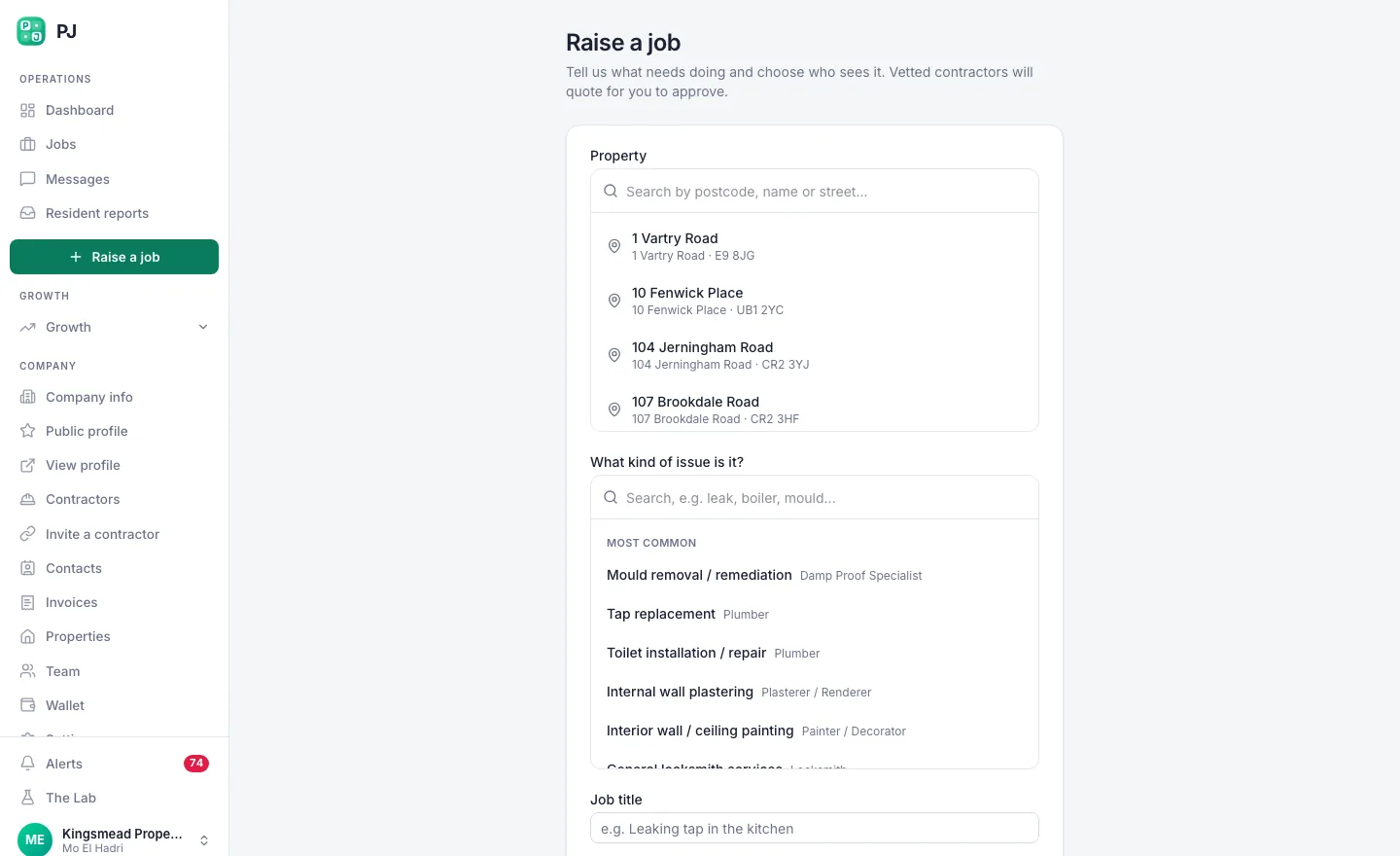 They raise the repair themselves, against the right property, with photos attached.
Step 3: Review the enquiry in Leads
When the property manager submits, the repair doesn't jump straight into Jobs. It lands in Leads. That's deliberate. You look at it before you commit to anything.
- Open Leads and open the new enquiry.
- Check the brief. If something's missing, ask.
- Decide whether you're taking it. That's your decision, nobody else's.
- Price it. You set the price.
If you've switched on AI staff, Sophie Bennett, the AI Enquiries Coordinator, checks job briefs for missing information and asks the client to clarify. If she's tried twice and still hasn't got what she needs, she hands it back to you. She doesn't price the work, and she doesn't decide whether you take it. You can see how the AI staff fit together at planajob.com/ai-staff.
Keep the conversation about the job in Messages, not in your texts. When something goes wrong three months later, you want the history in one place.
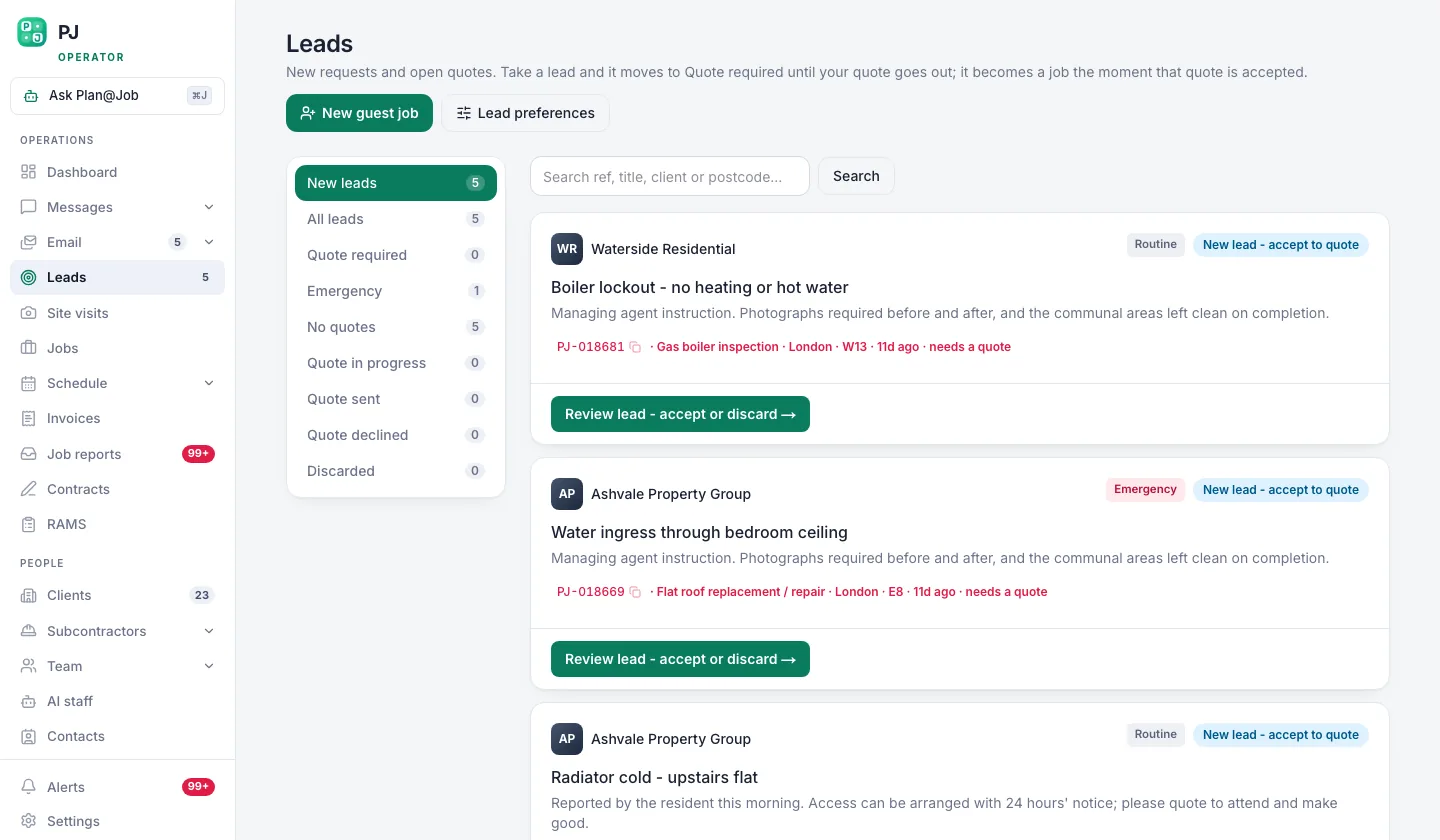 New enquiries queue as leads before they ever become a job.
Step 4: Turn it into a job and get it done
Once you've agreed it, it becomes a job in Jobs.
- For a simple repair, one job is enough. For bigger works, split it into internal stages, each with its own scope, dates, status and costs.
- Decide who does it. One of your in-house operatives, or a subbie from Subcontractors.
- If you've switched on Daniel Reed, the AI Operations Manager, he can share eligible work with your existing vetted network and follow up on quotes and proposed dates. He doesn't award the job. You pick who gets it.
- Book it in on Schedule and keep the client updated in Messages.
- Write it up in Job reports with before and after photos.
This next bit matters for an operator. The client sees the overall agreed scope, the price and the evidence you share with them. Your internal stage costs and who your subcontractor is stay internal. The agent gets a finished job and the proof. Your spread stays your business.
Step 5: Invoice and close it out
Raise the invoice from Invoices. If Maya Collins, the AI Finance Coordinator, is on, she prepares deposit requests and overdue payment actions for you to approve. Nothing goes out on its own. Finance runs on fixed workflows, so you're approving each action, not hoping the software guessed right.
Then show the agent the finished job. That's when they realise it's easier than chasing you by phone. That's what makes the second repair come in through the link.
What the platform does and what needs you
Get this clear before you pitch it to an agent, so you never promise something the system doesn't do.
The platform handles:
- the invite link and the property manager's account
- repairs arriving as leads against the property, with photos
- checking briefs and asking clarification questions, if Sophie is on
- sharing eligible work with your vetted network and chasing quotes, if Daniel is on
- preparing payment actions for approval, if Maya is on
You decide:
- who gets invited
- whether you take each job
- the price
- who does the work
- any first contact the AI staff want to make with a client, and every payment action before it goes
What usually goes wrong
The biggest one is that you keep taking repairs on WhatsApp. The agent sends a message, you want to be helpful, you reply 'no problem, on it'. Now they've learnt the system is optional. Be polite and be consistent. Log it yourself this once, then send the link again: 'Raised this one for you. Pop the next one in here so it's tracked.'
Second, slow replies on the first few repairs. If the first three sit in Leads for a day, the agent goes back to the phone. Treat the first month like an audition, because it is one.
Third, inviting the wrong person. The director signs up and never raises a repair, while the property manager who does is still emailing you. Find out who actually raises the work.
Fourth, rubbish briefs. No access details, no photos, just 'heating not working'. Sort this out on the first call, not on the tenth job.
The next move
If even one agent is still texting you repairs today, start there. Pick the property manager who sends you the most, send the invite from Invites, and do their first repair with them this week.
Want to see what Plan@Job looks like from the agent's side before you pitch it? Have a look at the Plan@Job page for property managers. If you haven't set up your operator account yet, start it here.
If you're building your contracting business around this and want to talk it through with people doing the same, that's what Contractor Club is for.
FAQ
Will a letting agent really use another system?
Some won't, and you'll know fast. Most will if it's quicker for them than chasing you. Make the first repair painless, reply fast in the system and show them the finished job with photos. That's what sells it, not the software.
Does Plan@Job turn their emails into jobs automatically?
No. Sophie doesn't turn every incoming email into a job. The clean route is the property manager raising the repair through their account, so it lands in Leads against the right property. If an email slips through, log it yourself and point them back to the link.
Can the agent see which subcontractor did the work?
No. The client sees the agreed scope, the price and the evidence you choose to share. Your internal stage costs and who your subcontractor is stay internal.