
To invite a client to your contractor portal on Plan@Job, open Invites, copy your property manager link and send it to the person who books your repairs. They sign up through it, you accept their join request, and from then on their repairs come into your Jobs instead of your WhatsApp. That's the whole job. Most people get the clicking right. Where they go wrong is who they send the link to and what they say when they send it.
A quick note on words first. In Plan@Job, the Operator is the contractor business. That's you, managing clients, jobs, subbies and your own operatives. The property manager is your client. This guide is for operators.
Why put a property manager on your account at all
Because right now their repairs probably reach you through a phone call, a text, a forwarded email and half a photo. Then you spend the evening putting the brief back together.
I ran a property maintenance company in London that worked for letting agents and housing associations. The work was rarely the hard part. The brief was. Wrong address, no access details, no idea who the tenant is, and "it's leaking" as the full description.
If your client raises the repair in your system, the brief starts in one place. You can see it, they can see it, and nobody argues later about what was asked for.
Before you send the link
Don't send an invite to someone you haven't spoken to. It's a link, not a sales pitch.
Sort these out first:
- Your own account is set up as an operator. If it isn't yet, create your operator account here.
- You've agreed the basics with the client: your rates, callout terms, payment terms and what counts as an emergency. Plan@Job doesn't agree your commercial terms for you. That's a conversation between you and them.
- You know who actually raises the repairs. Often it's not the director you met. It's the person on the lettings desk who gets the tenant's call.
How to invite a property manager, step by step
1. Open Invites
Log in and go to Invites in your navigation. That's where your shareable links live.
2. Copy the property manager link
On the Invites screen you'll find the link for property managers. Copy it. This is the link that connects them to your account as a client, so make sure you're copying the property manager one and not a link meant for someone else.
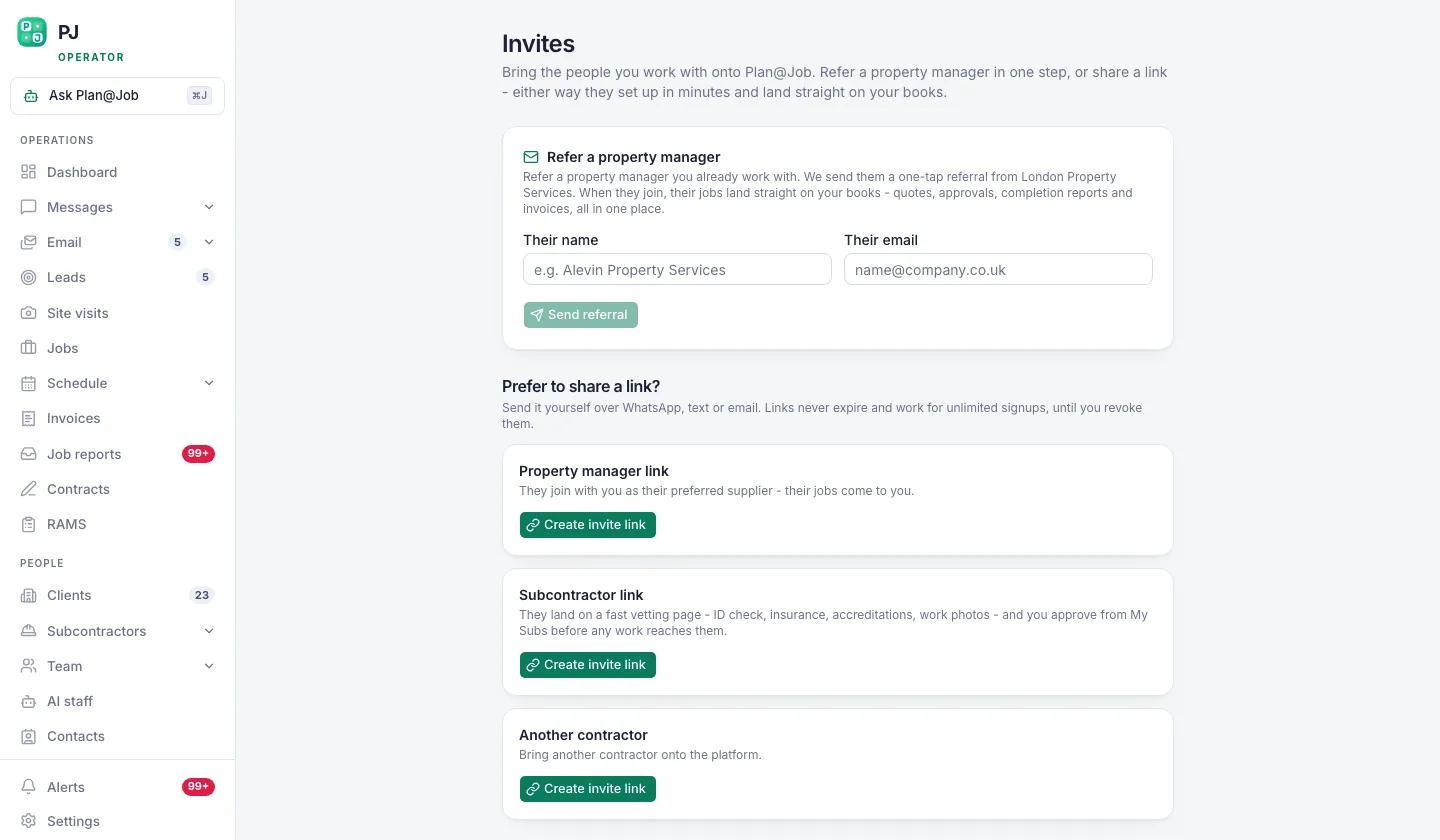 The invite link is what turns a property manager into an account that raises repairs in your system.
3. Send it yourself, with a reason
This bit is yours. The platform gives you the link. It doesn't write your relationship.
Send it from your own email or phone, to the named person, with one line on why it helps them. Here's an illustrative example, not a real message from a real client:
"Hi Sarah, from now on can you raise repairs through this link? You'll see every job, where it's at and the photos when it's done, without chasing me. Put the address, access details and a photo if you have one."
That last sentence matters more than the link. Tell them what a good repair request looks like.
4. Accept the join request
When they've signed up, open your join requests. That's where property managers asking to raise their repairs through you show up.
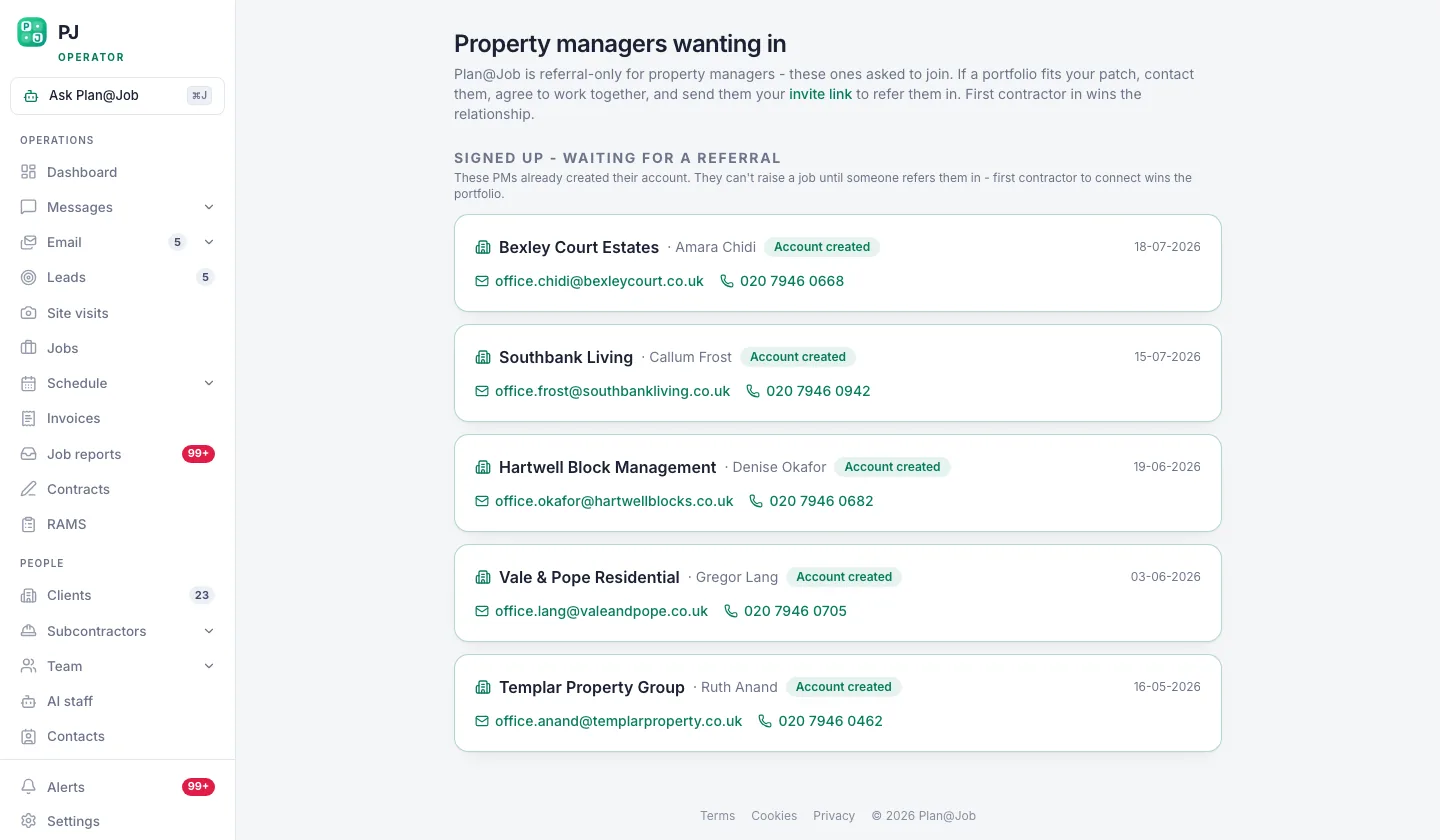 Join requests: property managers asking to raise their repairs through you.
Accepting is your decision. Check the name and the agency match who you invited. If you don't recognise a request, don't accept it until you've picked up the phone and found out who it is.
5. Walk them through the first repair
Don't assume they'll start using it straight away. Ask them to raise the next repair through the portal while you're on the phone, or do it with them on your next visit. Once they've done it once, they'll keep doing it.
What happens when they raise a repair
The repair lands in your Jobs. From there it's your normal workflow.
If you've got Sophie Bennett, the AI Enquiries Coordinator, switched on, she checks the job brief for missing information and asks the property manager to fill the gaps. She has two goes at it. If it's still not clear after that, it comes back to you. She doesn't decide the job, price it or send anyone. More on how the AI staff work here.
Then you decide who does it. That might be one of your own operatives, or a subbie through Subcontractors or the Subcontracting desk. Bigger jobs can be split into internal stages with their own scope, dates, status and costs.
The quote is yours. The price is yours. Who goes to site is yours.
What the property manager sees, and what they don't
When your client logs in, they see their repairs. Not your business.
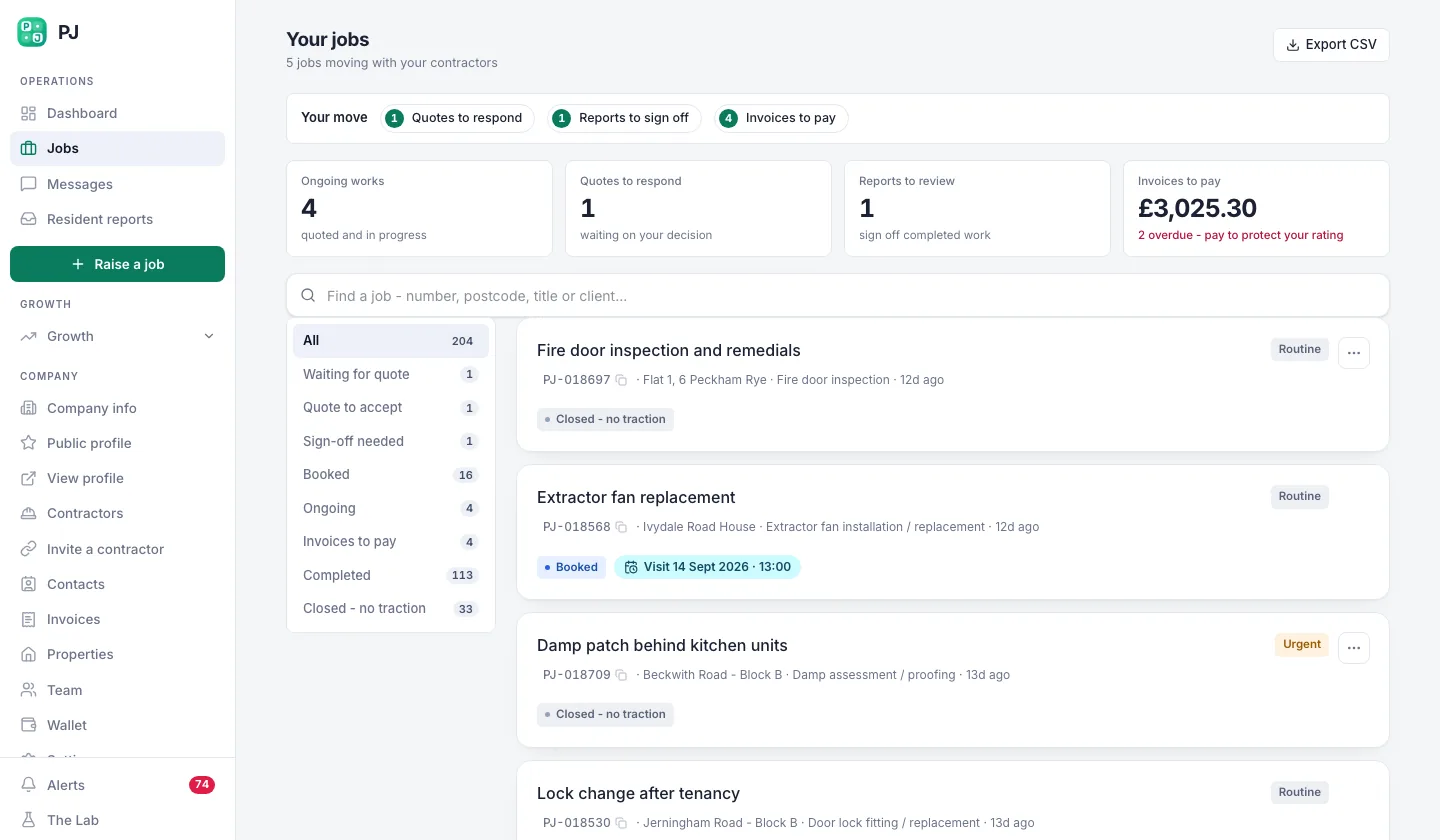 What your property manager sees when they log in: their repairs, not your business.
They see the overall agreed scope and price, where each repair is at, and the evidence you've chosen to share, like completion photos.
They don't see your internal stage costs. They don't see which subbie did the work. Your margin stays yours, and so does your supply chain. That's how it should be. The client is paying you for the result, not for a list of your contacts.
Who decides what
Here's the split, plainly.
The platform does this:
- Gives you the shareable property manager link in Invites
- Puts join requests in front of you
- Brings their repairs into Jobs
- Shows the property manager their repairs by stage, without your internal costs or subbie identity
- If you use Sophie, checks briefs for missing information and asks for it
You decide this:
- Who gets the link and what you tell them
- Whether to accept each join request
- Whether you take the job at all
- The price, the quote and the terms
- Who does the work, your team or a subbie
- What evidence gets shared with the client
Nothing in that first list awards a job, sets a price or moves money on its own.
What usually goes wrong
I've seen most of these. Some of them I did myself before I learned.
Sending the link to a generic inbox
The info@ address gets it, nobody acts on it, and three weeks later the repairs are still coming in by text. Send it to a person, by name.
Inviting before the terms are agreed
The portal makes it easy to raise work. If you haven't agreed rates and payment terms, you've just made it easy to raise work you'll argue about later. Agree first, invite second.
Not telling them what a good request looks like
You'll get "boiler broken" with no address. Tell them up front: address, access, tenant contact, photo. Sophie can chase the gaps, but a clean brief from the start is always faster.
Letting the jobs go stale
This is the one that hurts. The client can now see where every repair is at. If you don't update the job, they see it sitting there. A portal shows good service off. It shows bad service off too. Keep your Jobs current or don't bother inviting anyone.
Accepting join requests you don't recognise
Check before you click. It takes one phone call.
The next move
Pick one property manager you already work with. The one who sends the messiest requests. Invite them this week and walk them through the first repair.
If they want to see what they're signing up to before they click your link, send them the Plan@Job page for property managers. It explains the client side in their language, not yours.
And if you want to talk through how to pitch it to a client who's been texting you repairs for five years, that's the kind of thing we get into at Contractor Club.
FAQ
Can the property manager see which subcontractor did the job?
No. They see the agreed scope and price, the stage of each repair and the evidence you share. Subcontractor identity and your internal stage costs stay internal. Your supply chain is your business.
Do I have to accept every join request?
No. Every join request is your decision. If you don't know who it is, call them before you accept. Sending someone a link doesn't oblige you to take every job they raise either.
Can I use this with clients outside the UK?
The UK is the live market right now. Other countries have their own regional pages with a reserve or waitlist journey, so don't promise an overseas client the UK setup. Point them to their country's page and let them get in the queue.