
Construction project stages work best when they live on your side of the job, not the client's. Split the work into internal stages for planning, scheduling and costing, then show the client one agreed scope, one agreed price and the evidence you choose to share. In Plan@Job that split is built into the job page. Stages, dates, status and costs sit with you as the Operator, which means the contractor business managing clients, project delivery, subcontractors and in-house operatives. The client sees the job they agreed to. This guide walks through the setup in the order you would actually do it, and says where you still need to make the call.
Why keep stages internal
Clients buy an outcome. A landlord wants a working kitchen back in a flat. A main contractor that commissions work from you wants your package delivered to the agreed scope. Neither needs to see that you have split it into strip out, first fix, plastering and second fix, or what each part costs you.
When internal stages leak out, clients start asking the wrong questions. Why does plastering cost that much? Who is that electrician? Why is stage three late when the job finish date has not moved? Keeping stages internal lets you manage the detail without inviting a negotiation over every line.
Step 1: Decide the stages before you open the job
Work this out on paper or in your head first. It is a person's decision, and it shapes everything after it.
- Start from the agreed scope. Stages should add up to what the client agreed, no more and no less.
- Break where the people change. If your own operatives strip out and a subcontractor does the electrics, that is a natural stage boundary.
- Break where you need to check before moving on. Drying time, an inspection required under current Building Regulations, or your own quality check are all good boundaries.
- Keep the count manageable. Enough stages to track cost and progress, few enough that someone actually updates them.
- Use plain trade names. Your team should know what a stage means without opening it.
Illustrative example
This is a fictional example for explanation only. A kitchen refit in a rented flat might be split into: strip out and making good, first fix plumbing and electrics, plastering, second fix and appliance fitting, and finishes and clean. The client still sees one job: supply and fit a new kitchen to the agreed specification.
Step 2: Add the stages to the job
Once the job exists in Plan@Job, build the internal plan on the job page.
- Go to Jobs and open the job.
- On the job page, add each internal stage and write a short scope for it. Describe what done looks like for that stage.
- Set planned dates for each stage.
- Set the status of each stage so it reflects where the work really is.
- Enter your cost for each stage.
You decide every value here. Plan@Job holds the stages, dates, status and costs on the job page and keeps them internal. It does not work out a critical path or move later stages automatically when an earlier one slips, so if plastering runs two days over, you adjust the following dates yourself.
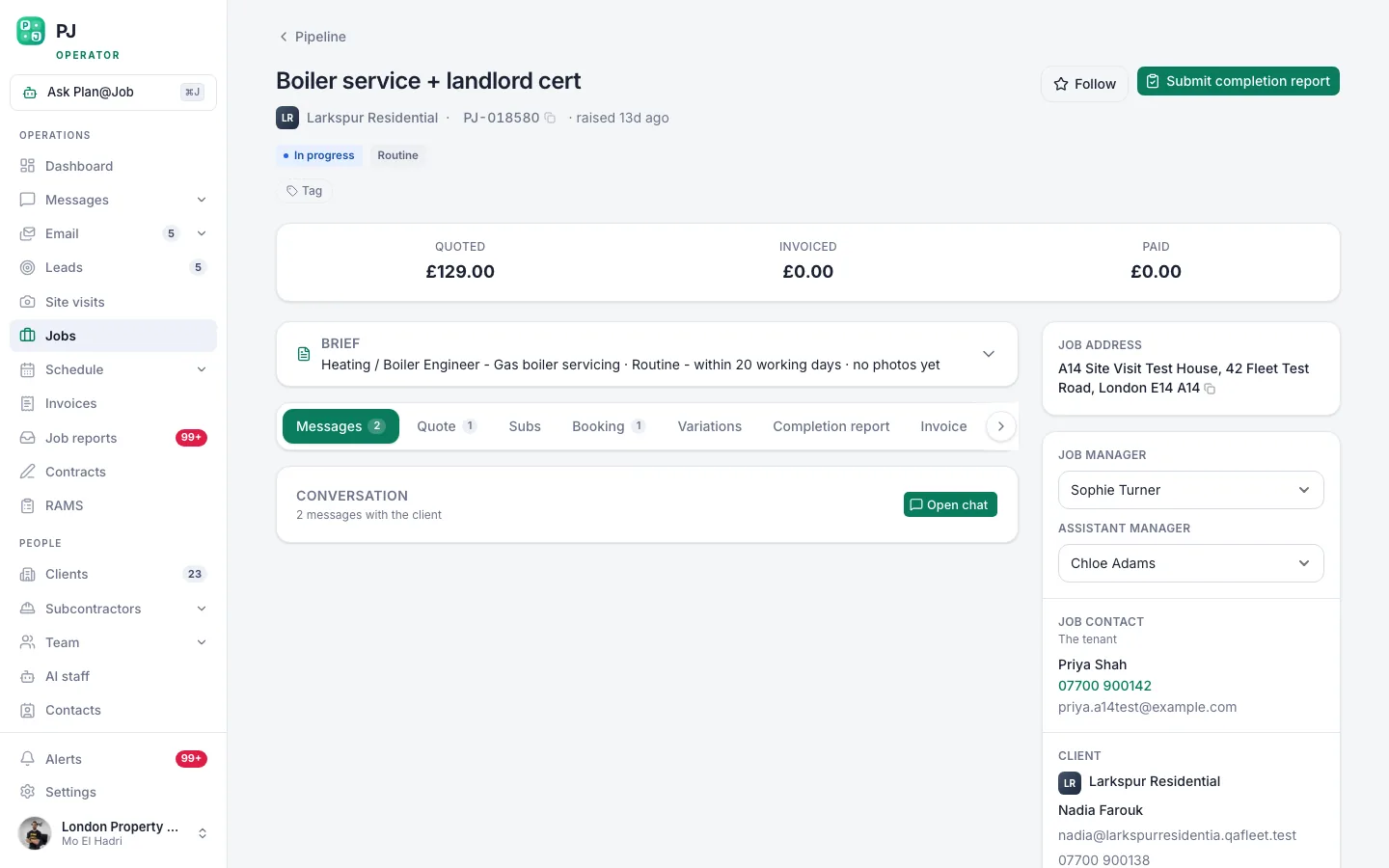 A job page holds the scope, the internal stages, who is doing the work and what it costs you.
Step 3: Keep the client price as one scope
This is where most confusion starts, so get it right before anything goes to the client.
- Write the quote in terms of what the client gets, not how you will sequence it.
- Use line items to describe the scope clearly, but do not turn them into a copy of your internal stage costs.
- Check the total is the single agreed price the client will see.
- Put payment terms, including any deposit, in the agreement itself. Use Contracts for the terms you have agreed.
Internal stages are a planning and costing tool. They are not a client billing schedule. If you agree staged payments with a client, set that out in your contract terms and raise invoices from Invoices as agreed, rather than expecting the stage plan to drive client billing.
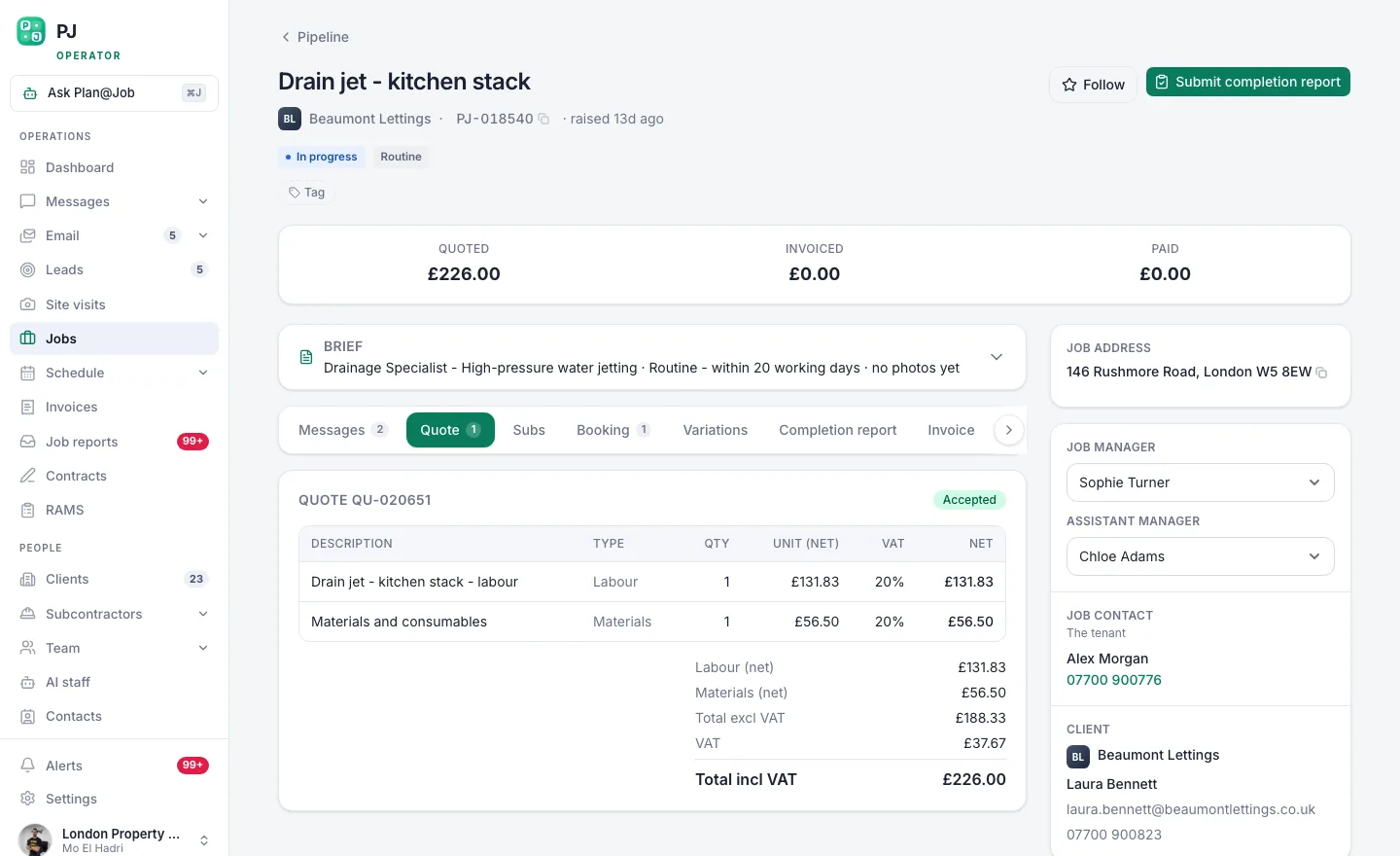 The client sees one scope and one price. Your stage costs stay behind it.
Step 4: Assign each stage, subcontracted or in-house
Each stage needs someone doing it. Plan@Job supports both subcontracted and in-house delivery on the same job.
Subcontracted stages
- Go to Subcontractors and choose who you want to price or carry out the stage.
- Share the stage scope and dates, not the client's full price.
- Review what comes back. In supported workflows a subcontractor may price before vetting is complete, so make your checks before you award the work, not after.
- Agree the terms with the subcontractor and assign them to the stage.
Awarding work and agreeing a price are always a person's decision. AI staff can help chase quote and proposed-date follow-ups, but they do not award work or set prices for you. The subcontractor's identity stays internal and is not shown on the client's view of the job.
In-house stages
- Assign the stage to the right operatives from Team.
- Check the dates against Schedule so you are not double-booking anyone.
Step 5: Run the stages day to day
- Update each stage's status as work moves. If no one updates it, the plan stops being useful.
- Compare what each stage is really costing against the cost you entered.
- When you message the client from Messages, talk about the job: progress, access, anything you need from them. Leave stage names and stage costs out.
- Share evidence on purpose. Pick the photos and notes that show progress on the agreed scope. Check them before sharing, for example a van in the background carrying another firm's name.
- When the work is complete, record the finish against the job and produce any reports from Job reports.
What the client sees
When the client logs in, they see their job: the overall agreed scope, the agreed price and the evidence you have shared. For a property manager that means their repairs and works in progress. It does not mean your stage costs, your margins or the names of your subcontractors.
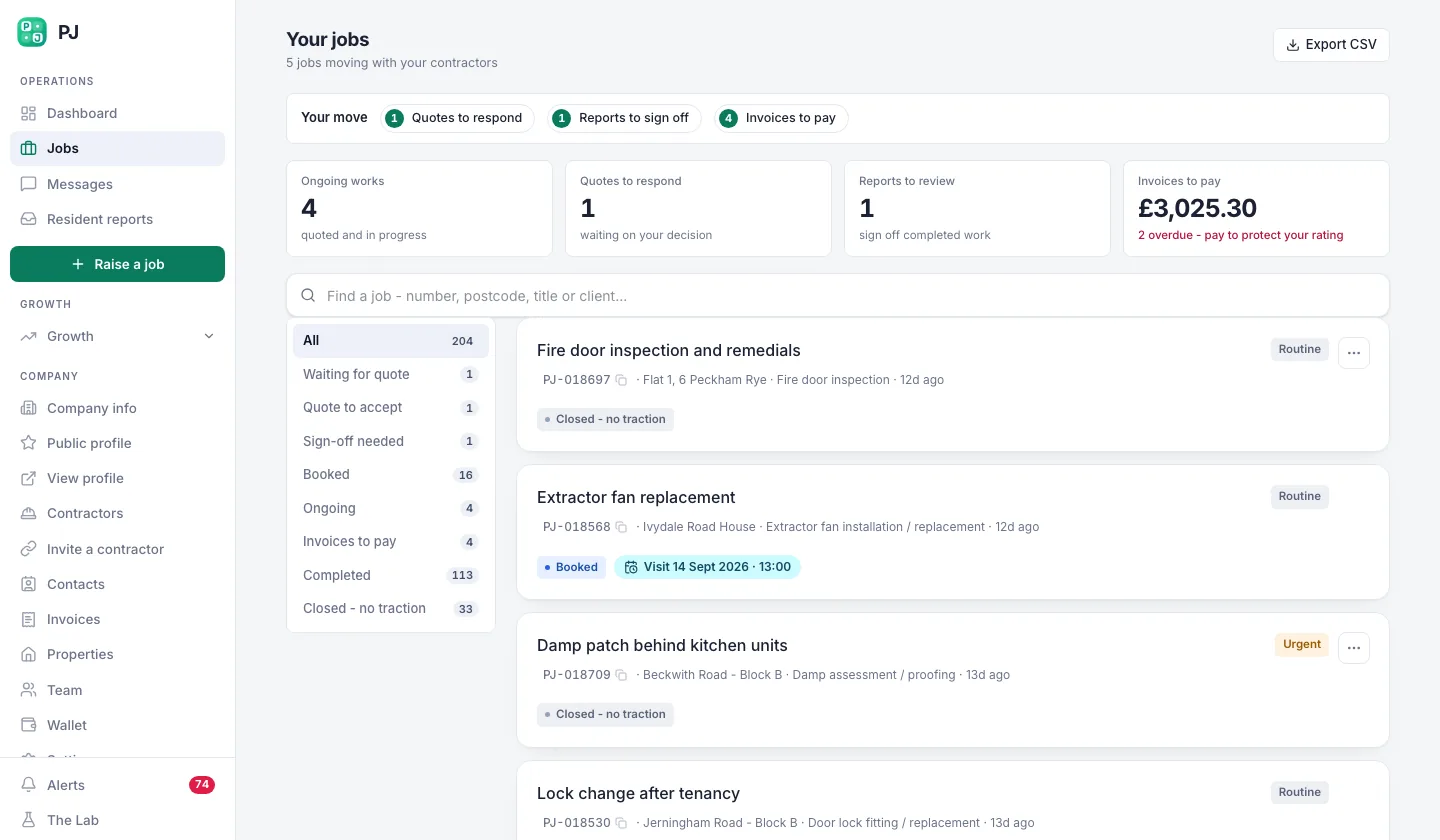 What your property manager sees when they log in: their repairs, not your business.
A simple way to think about it:
- Client sees: agreed scope, agreed price, shared evidence.
- You see: all of that, plus internal stages, stage dates, status, stage costs and who is assigned.
Who decides what
You decide:
- How the job is split into stages
- The scope, dates and cost of each stage
- Who carries out each stage and on what terms
- What evidence the client sees
- Payment terms in the contract
Plan@Job does:
- Holds stages, dates, status and costs on the job page
- Keeps internal stage costs and subcontractor identity off the client's view
- Shows the client the agreed scope, price and evidence you share
What usually goes wrong
- The quote mirrors your stage costs. The client then argues stage by stage. Price the scope, not your sequence.
- Stage names creep into client messages. Say the kitchen is ready for plastering, not that stage two has closed.
- Stage dates get treated as promises. Only the dates you agree with the client are commitments. Internal dates are for running the work.
- Later dates are left alone after a slip. The plan does not reschedule itself. Move the following stages when one runs over.
- The site visit surprises the client. Tell the client who to expect in plain terms, and agree with your subcontractor how they introduce themselves. Keeping identity off the client view is not a reason to be evasive if the client asks a direct question.
- Too many stages. If no one updates them, you have a list, not a plan.
Your next step
If you want to run stages, costs and delivery in one place while keeping the client view simple, read how project management in Plan@Job works. You can see the wider operator setup on the Plan@Job page for UK contractors, or create an operator account and try it on your next job.
FAQ
Can my client see the cost of each stage?
No. The client sees the overall agreed scope, the agreed price and the evidence you share. Internal stage costs stay on your side of the job.
Does Plan@Job move later stages if one runs late?
No. Plan@Job does not do automatic dependency scheduling or critical path planning. When a stage slips, update the dates on the following stages yourself and check Schedule for clashes.
Can I bill the client stage by stage?
Internal stages are for your planning and costing, not a client billing schedule. If you agree staged payments with a client, write them into the contract terms and raise invoices from Invoices as agreed.